Provide API information
Gather and provide Workday API information for Indeed integration.
Who: Workday administrator
Time: ~5 minutes
Gather your Workday API connection details and organization settings, and then share them with your Indeed administrator to complete the installation.
Step 1: Get API client information
-
Search for
View API Clientsand select the Report.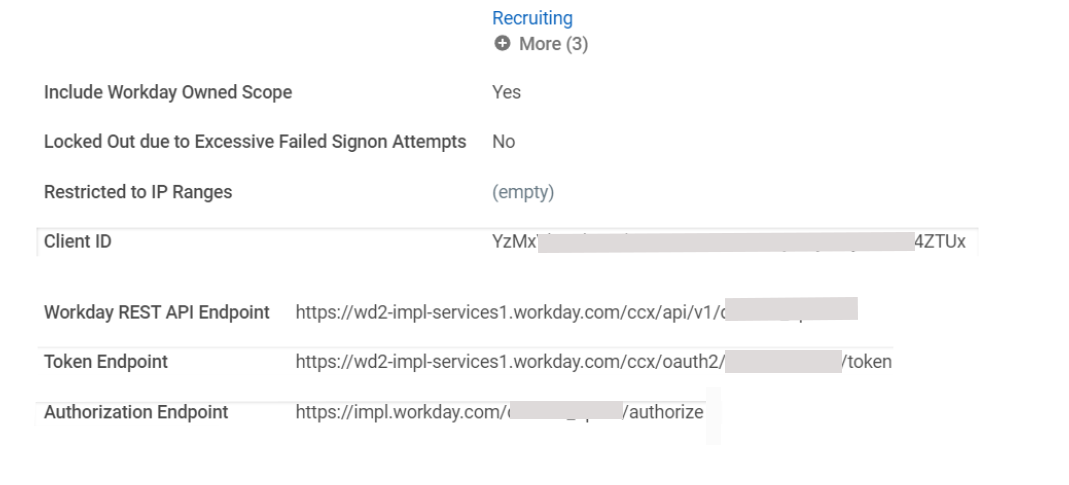
View API Clients report with example data -
Select API Clients for Integrations.
-
Find and record these values for your Indeed administrator:
- Token Endpoint URL (Indeed uses it to derive the Base API URL and Tenant)
- Client ID
- Client Secret: The value you saved in Register the API client for integrations. If you lost the value, see Recover a lost Client Secret.
- Refresh Token: The value you saved in Generate the refresh token. If you no longer have it, follow these steps.
-
To retrieve the refresh token: a. Select the Indeed button to open the menu, and then select API Client > Manage Refresh Tokens for Integrations.

Manage refresh tokens menu b. In the Workday Account field, enter
ISU_Indeed, and then select OK.
Manage refresh tokens dialog c. Copy and save the Refresh Token value.
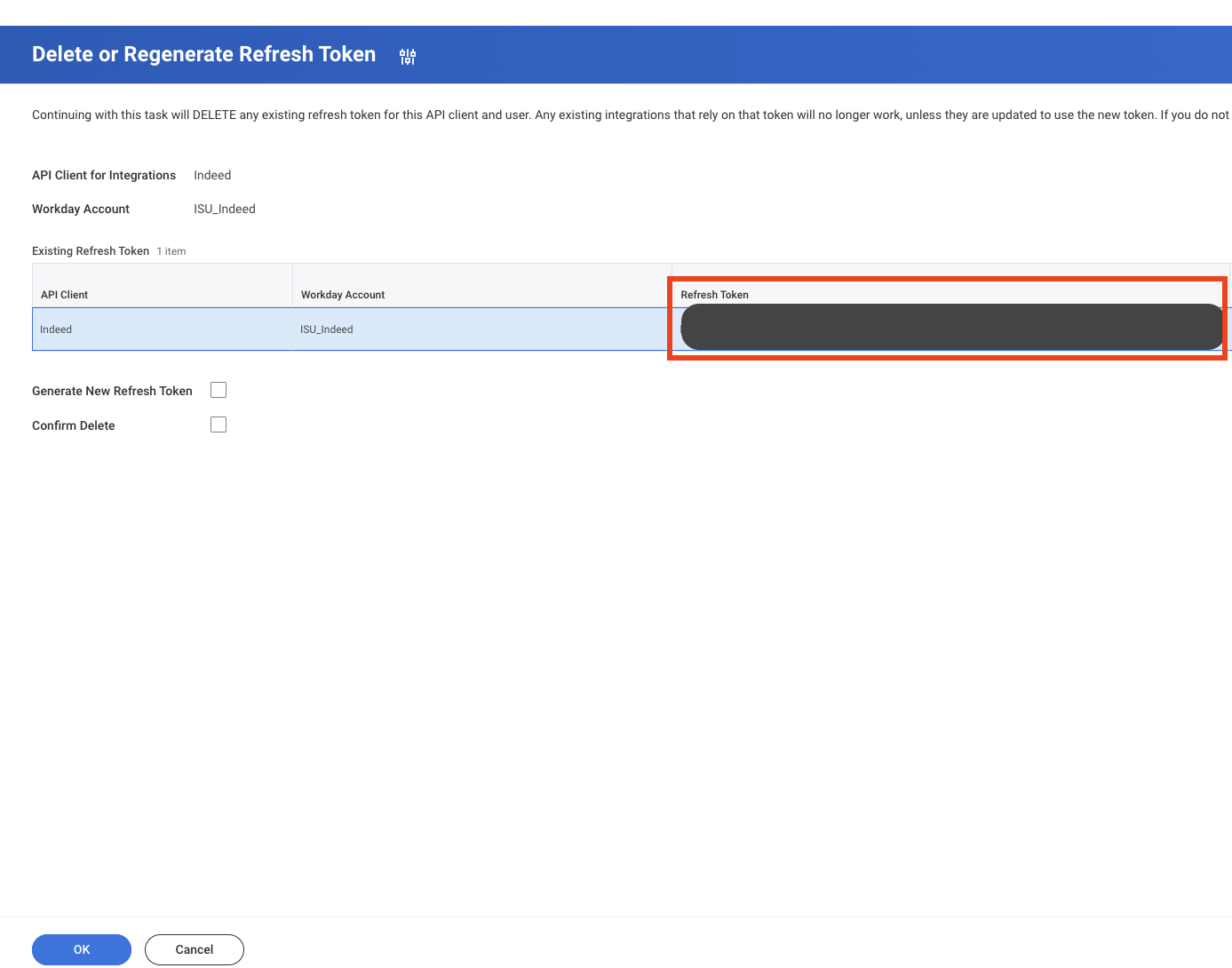
Refresh token displayed
The API Clients report does not include the Company field. Share your organization type value separately. If you need a custom organization type, see Configure custom organization.
Step 2: Get the organization type ID or calculated field WQL Alias
Identify your organization type ID to control which company name job seekers see on Indeed.
Confirm that your organization type appears in the Job Requisition > Organizations assignment. Indeed cannot use an organization type that you have not assigned.

-
Search for
View Organization Types Setupand select the Report.
View Organization Types Setup screen -
Find your organization type in the list.
-
Select the options icon next to the organization type.
-
Select Integration IDs > View IDs.

Reference IDs screen -
Copy the ID from the Reference IDs table.
If you use a calculated field instead of an organization type, provide the WQL Alias from Configure calculated field rather than an organization type ID. To find it, search for your calculated field in Workday and open the Additional Info tab.
Step 3: Review integration field requirements
Share these values with your Indeed administrator. The administrator needs them during installation.
| Indeed installation field | Description |
|---|---|
| Integration Name | Indeed pre-fills the ATS integration name. |
| Base API URL | From the Token Endpoint URL, copy everything up to and including ccx/. |
| Tenant | In the Token Endpoint URL, copy the value between oauth2/ and /token. |
| Client ID | Copy from the View API Clients report. |
| Client Secret | The value you saved in Register the API client for integrations. |
| Refresh Token | The value you saved in Generate the refresh token. |
| Company | The company name that job seekers see on Indeed. Choose one of the following: a standard or custom organization type that you assigned to job requisitions (新しいウィンドウで開きます), a calculated field on the job requisition object, or a static value that you hard-code in the Indeed UI to use for all of your jobs. If you need a custom type, see Configure custom organization. |
| Job Location | Choose Primary Location Reference or Primary Job Posting Location Reference. By default, Indeed displays the primary location and every additional location. To display only the primary location, contact your Indeed administrator. |
| Source(s) | Specify your organic and sponsored recruiting sources. Indeed adds these sources to application records based on the application type (organic or sponsored). |
| Test or production install | Choose a test or production installation. Coordinate with your Indeed administrator before you start. |
Share information with the Indeed administrator
Share these values with your Indeed Employer Home administrator:
- Base API URL: [Your value from step 1]
- Tenant: [Your value from step 1]
- Client ID: [Your value from step 1]
- Client Secret: The value you saved in Register the API client for integrations
- Refresh Token: The value you saved in Generate the refresh token
- Company: [Standard organization type, custom organization type ID, calculated field WQL Alias, or static value]
- Installation type: Test, production, or both
Optional information:
- Preferred Indeed Source: [Your source name] (required only if you use Indeed notifications)
- Custom organization type ID: [Your value from step 2] (only if you configured a custom organization)
Next steps
After you share this information, your Indeed administrator can complete the installation: