Configure custom organization (optional)
Create custom organization types for company names on Indeed.
Who: Workday administrator
Time: ~20 minutes (one-time setup)
Skip this section if you use Job requisition > Organizations > Company or another standard organization type for your company name.
Create a custom organization type in Workday to control the company name displayed to job seekers on Indeed. This enables you to customize how your company appears on job postings, which is useful when your legal entity name differs from your brand name, or when you have multiple companies posting under different names.

Step 1: Create organization type
-
Search for
Maintain Organization Typesand select Report. -
Select Custom at the top of the options screen. Then, select Edit.

Maintain Organization Types screen -
Select the + button in the top-left of the Organization Types table to create a row.
-
Enter a name for the new organization type.

Maintain organization options -
Select these options:
- Allow Hierarchy
- Used by Organization Subtypes - Select Company
- Allow Reorganization Tasks
- Show in Change Organization Assignments and Job Requisitions
-
Select Done to save your changes.
Step 2: Create custom organizations
-
Search for
Create Custom Organizationand select Task. -
Select your newly created organization type in the Custom Organization Type dropdown.
-
Select Create Reorganization in the Reorganization section.

Create Reorganization screen -
Configure the custom organization:
- In the Name field, enter the company name to display on Indeed.
- For Subtype, select Company.
- For Visibility, define access restrictions based on your organization's security requirements.

Create Reorganization screen -
Select OK to save the custom organization.
-
Create additional custom organizations by repeating the process from Step 2: Create custom organizations.
Step 3: Update job requisitions and provide ID
-
Update your job requisitions to use the newly created organization type. Select a custom organization for each job requisition to display the correct company name on Indeed.

Reference ID Value items -
Search for
Maintain Organization Typesand select Report. -
Locate the organization type you created.
-
Select the options button in the Related Tasks column.
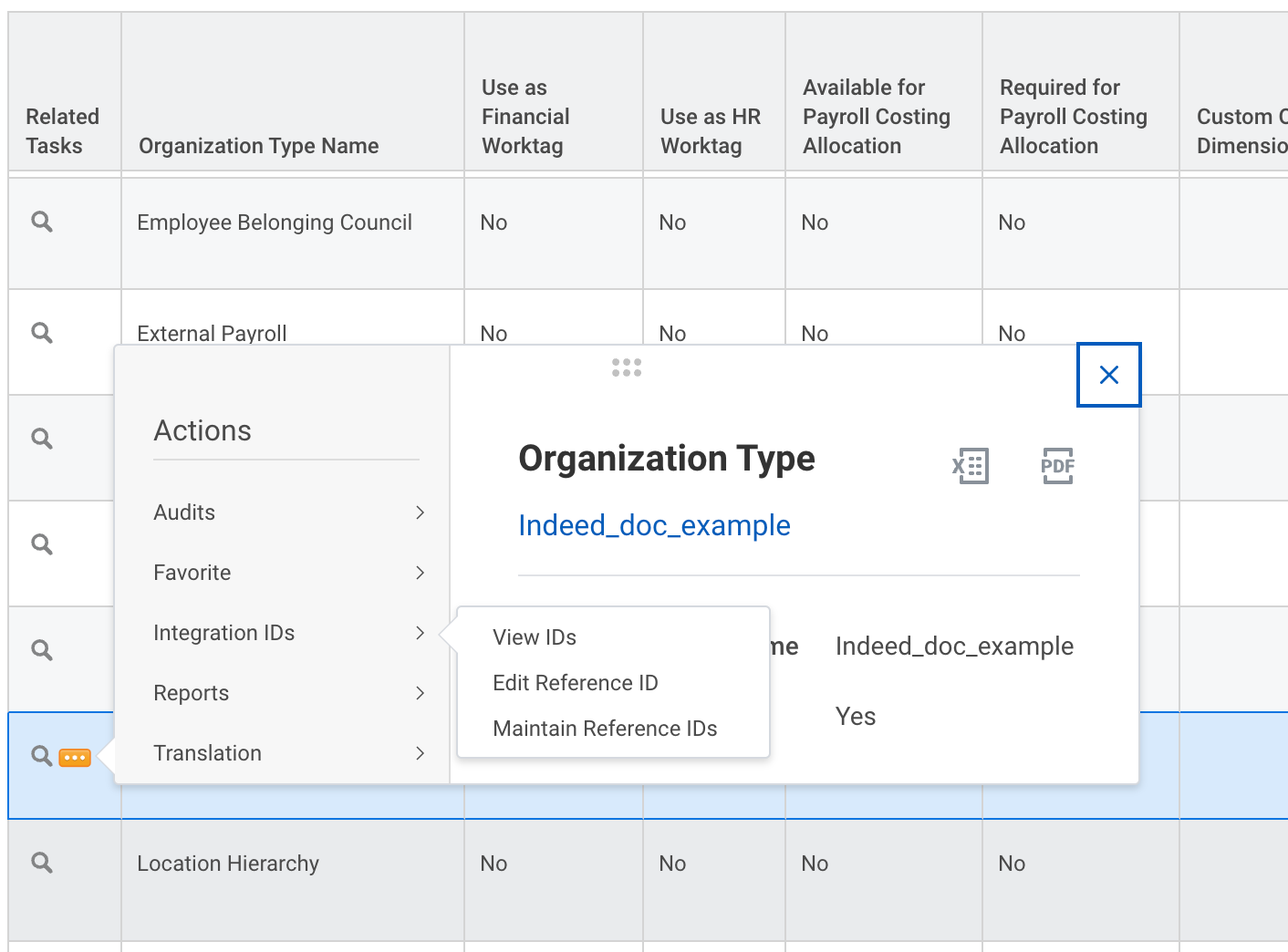
Organization Type - Actions screen -
Select View ID.
-
Copy the ID value from the Reference IDs table.

Integration IDs screen -
Provide this ID to your Indeed administrator for installation.
Next steps
You have successfully configured a custom organization type in Workday.
You completed:
- Created a custom organization type.
- Configured organization type settings.
- Created custom organizations.
- Updated job requisitions with the custom organization.
- Retrieved the organization type ID.
How to verify:
Your custom organization is ready when:
- Job requisitions display the correct company name in the custom organization field.
- The organization type ID is available to provide to your Indeed administrator.
- The organization type appears in Job Requisition > Organizations assignment.
What's next:
Continue to the next required step: