Install the integration with Indeed
Complete the integration setup in Indeed: confirm guidelines, test, and go live.
Who: SuccessFactors administrator (or Indeed Employer Home administrator)
Time: ~45–60 minutes (one-time setup)
Before you start
Complete Configure information in SuccessFactors first. From that step, you need these items:
- X.509 private key file
- API key, which is the client ID
- API server URL and career site subdomain URL
- Template files, including the job requisition mapping CSV, job application XML templates, and candidate profile XML
The integration sends application data only when First name, Last name, Email, and Country are included. Verify that your templates include these fields and that you map them in Step 3. For more information, see Data validation.
Step 1: Proceed with your Indeed admin account on the Integrations Hub
In the Before you begin section, select Continue.
Step 2: Confirm application data collection guideline
After you complete Plan for Success and Configure SAP SuccessFactors, this step appears. It confirms that your SAP SuccessFactors job application templates display correctly to job seekers on Indeed.
Before you continue, review your application templates and verify that the questions:
- Comply with Indeed's terms and moderation policies (新しいウィンドウで開きます).
- Do not request sensitive information that violates local employment laws.
- Are relevant to the job.
Indeed can flag or remove jobs with noncompliant questions. Learn more about flagged jobs (新しいウィンドウで開きます).
Select the checkbox, and then select Continue.
Step 3: Test your integration
Test your integration before you go live.
-
Connect your Indeed and SAP environments.
Enter your credentials in Enter your credentials, and upload the X.509 file that you created and downloaded in SAP.
-
Enter your base URL in Provide job apply base URL for testing. Use the API server URL and replace
apiwithcareer. -
Enter your subdomain URL in Provide career site subdomain URL for testing.
-
Upload and configure the template files that you created or downloaded earlier in Map templates. Complete these subsections in order.
Upload job requisition templates
Upload the CSV mapping file that maps your SAP JobRequisition fields to Indeed fields.
-
Upload the requisition templates that you downloaded in Map job requisition fields from SAP to Indeed fields. Name each file with its template ID. To find template IDs, sign in to SAP for Me (新しいウィンドウで開きます) and follow the instructions.
-
Select Select a file under Upload completed mapping spreadsheet (.csv) in Job requisition templates.
-
Select the CSV mapping file that you created. The file name must be
fields.csv. -
Select Next.
Upload candidate profile templates
Upload the candidate profile XML file that you downloaded from SAP.
-
Select Select a file under Upload candidate profile template (.xml) in Candidate profile templates.
-
Select the candidate profile XML file that you downloaded from the SAP Provisioning UI in Download candidate profile XML template. The file name must be
Candidate.xml. -
Select Next.
Upload and map job application templates
Upload your job application XML templates, and then complete the two-part mapping exercise for each template.
Upload your templates
-
Select Select a file under Upload SAP job application templates (.xml) in Job application templates.
-
Select all job application XML template files that you downloaded from the SAP Provisioning UI in Download job application XML templates. Each file name must match the file's template ID number.
-
Select Next.
Complete the mapping exercise
Complete the two-part mapping exercise for each template.
Part 1: Map standard fields (required)
The integration sends application data only when First name, Last name, Email, and Country are included. Map each required field from your template to the matching Indeed field.
-
Use the dropdowns for each template to map these required fields:
- First name
- Last name
- Phone
-
Map these fields too if your template supports them:
- Resume
- Cover letter
Part 2: Identify legislative questions (optional)
If your application includes legislative questions, also called Equal Employment Opportunity or EEO questions in the U.S., identify them so that Indeed can handle the questions and answers correctly.
-
Browse the list of fields from your template, or use the search box to find specific fields. Scroll through the list if the template has fewer fields.
-
Select the checkbox next to each field that contains a legislative question.
-
Use Show selected only to review your selections.
If your application does not include legislative questions, skip this part.
Save your mapping
-
After you complete both parts of the mapping exercise for a template, select Save.
-
Repeat the mapping exercise for each additional template.
After you save the mapping, the system generates a JSON file for each mapped template. You can download these files for reference.
To protect job seeker data, Indeed does not deliver applications that include sensitive information such as SSN, driver's license number, and age. If your application templates include this data, hide those fields so that applications are delivered. Even if SAP does not require the job seeker's country of residence, the integration does. Mark that field as required.
Review generated files and proceed
-
Review the list of generated JSON files.
-
Upload a modified JSON file in this step if your Indeed representative asks for one for a specific edge case. Otherwise, skip the upload.
-
Select Next.
Configure a data privacy policy in SAP SuccessFactors for each country, or set a default policy. If you do not configure this setting in SAP, Indeed disables Indeed Apply for all jobs because job seekers cannot view or accept a policy when they select a country that does not have one.
Enter job requisition countries
Configure the countries where your jobs are posted. Indeed uses the selected countries to validate your jobs against country-specific requirements. If you select countries where you are not actively recruiting, jobs might fail validation.
-
Select the dropdown under Search and select countries.
-
Select the countries where your jobs are posted and visible to candidates. You can select multiple countries.
-
Review your selections and verify that they include all hiring locations. Then select Save.
-
Select Finish mapping.
Check location data visibility
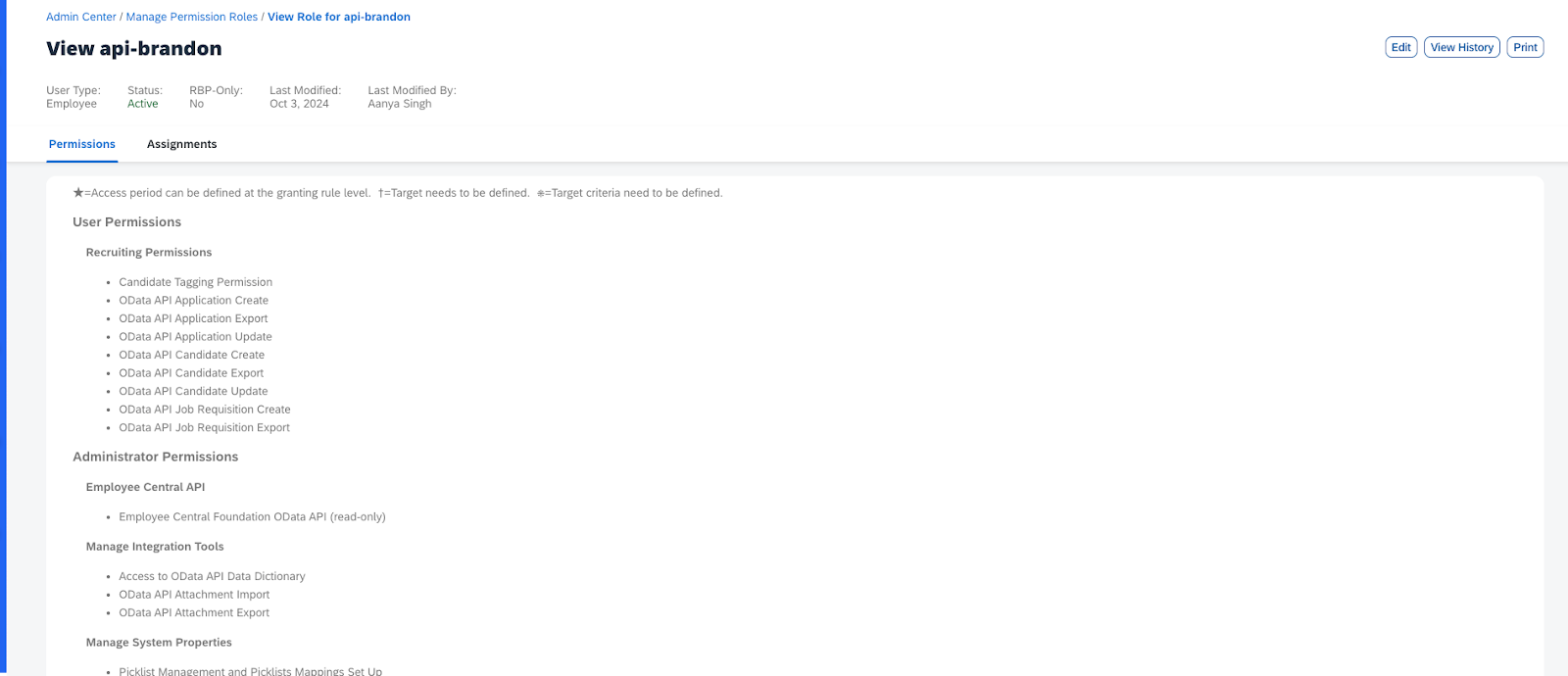
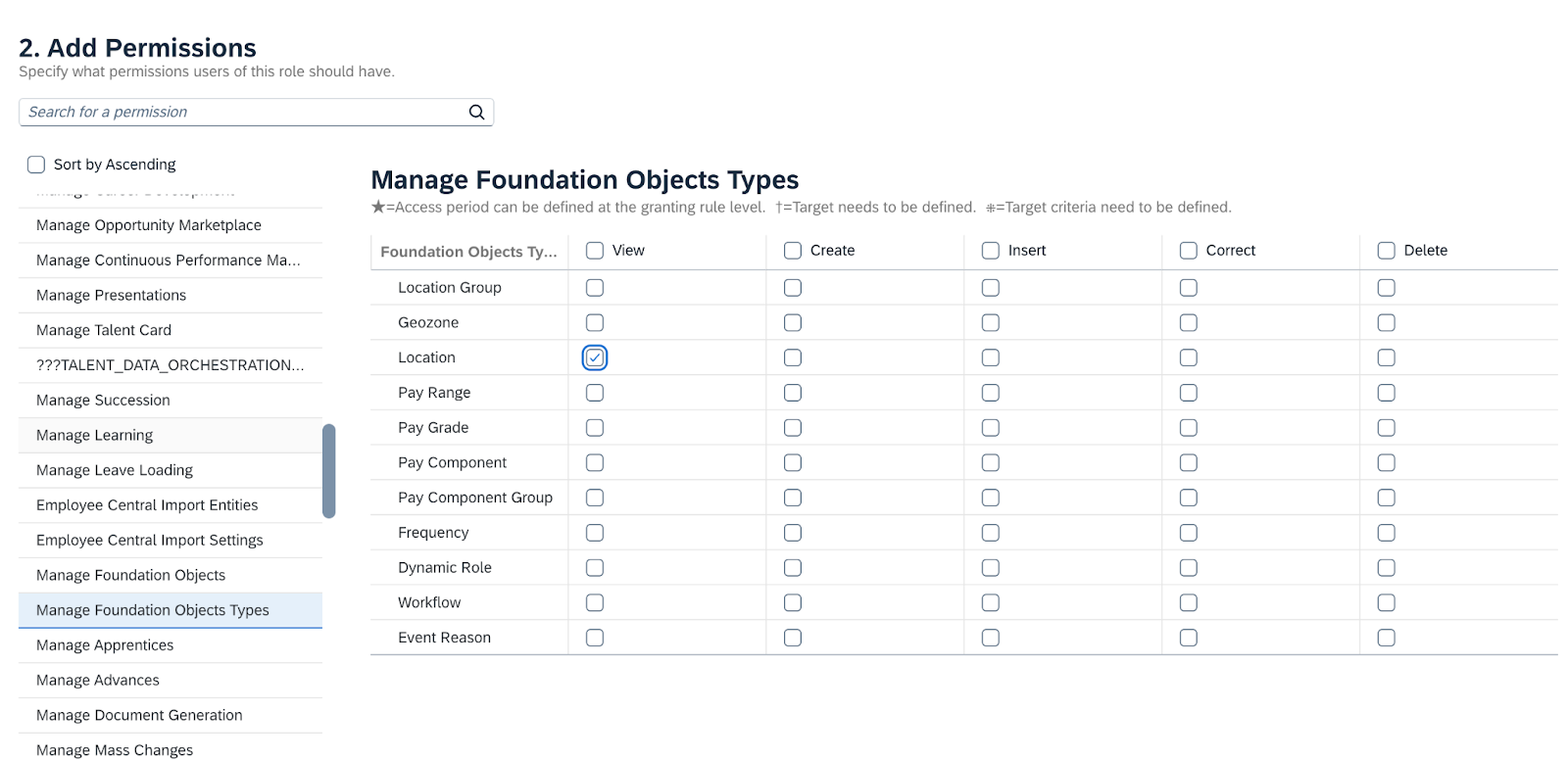
If the location column in your IDR is empty, grant additional permissions to the SuccessFactors API user account. Location data requires access to a different location object than the standard permissions provide.
- Go to Admin Center → Manage Permission Roles.

-
Select the role name that you want to edit.
-
Select Edit in the top right corner.
- Select Manage Foundation Object Types in Add Permissions, and grant View access to the Location object.
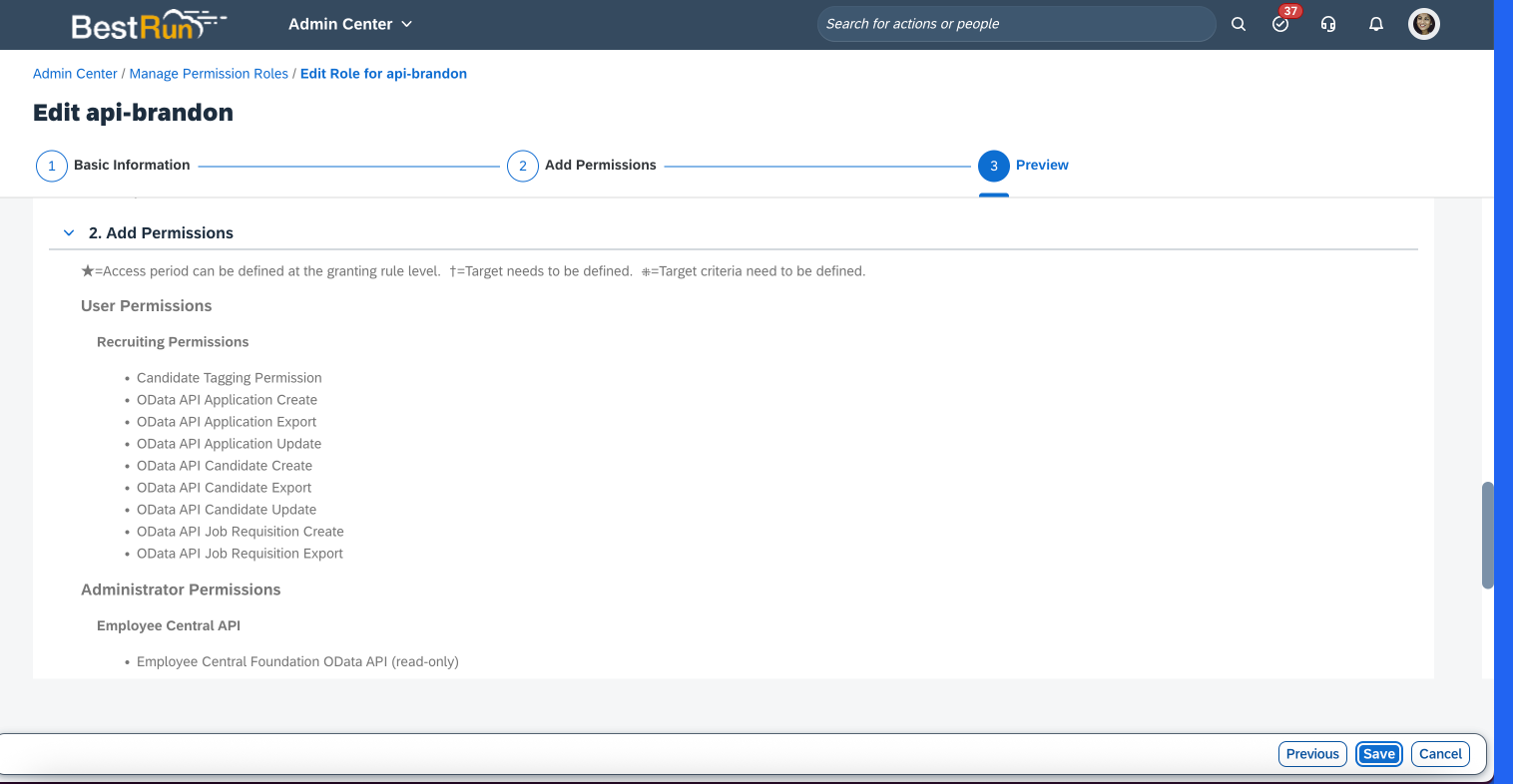
- Save the permission changes.
Review integration errors and preview jobs
Review job posting and Indeed Apply errors directly in the integration setup. To download the full report as a CSV, select Download full report. The Integration Details Report (IDR) includes information about all active jobs from your ATS and helps you troubleshoot your integration before you go live.
SAP allows questions to be conditionally required, but Indeed does not support this conditional logic. To ensure you receive complete applications, Indeed will make any conditionally required questions you set up required for all jobseekers if they are visible to all jobseekers.
-
Select Start review.
The system validates your integration setup and shows a summary of job statuses: ready to post, job post errors, and Indeed Apply errors.
-
Use the filters, including Job status, Title, Company, Location, and Issue, to find jobs or errors.
-
Review the Issue and Resolution columns for jobs with errors, and resolve the issues in your SuccessFactors settings.
-
Select the job post preview in that row to preview how a job appears on Indeed. Compare it with the job post on your career site.
Job post previews are for high-level reviews only. Indeed can make changes downstream to optimize the page for job seekers.
-
After you resolve errors in SuccessFactors, select Refresh from SAP SuccessFactors to revalidate.
-
Select Finish review.
You do not need to resolve every error before you continue. Contact your Indeed integration consultant if you need help.
Test apply to your jobs
Submit test applications to verify the full apply flow. To download the full IDR report, select Download full report.
Do not use an account with a corporate email address when you submit test applications. Open an incognito window and use a different account so that the ATS does not automatically reject your applications.
-
Use the filters, including Req ID, Title, Company, and Location, to find jobs.
-
Submit test applications with the Apply links in the table. Test different scenarios:
- Jobs in different locations
- Different roles with different screening questions
- Different legislative or EEO question responses
-
Sign in to SuccessFactors and verify that the applications were delivered correctly:
- Applications appear in the correct job requisition
- Candidate information is complete and accurate, including first name, last name, phone, email, and resume
- Screening and legislative or EEO question responses are captured correctly
Indeed stores the generated application source value in the
referredByfield on each application record. If you use the redesigned Applicant Management tool, this value does not appear as a column on the candidate review screen because the tool does not support API-generated fields as columns. To analyze source attribution, run a SuccessFactors analytics report against the application source field. To request a source column on the candidate review screen, submit a feature request to SAP. -
Select the job post preview for that row to preview how a job appears on Indeed.
-
Select Finish test apply.
Contact your Indeed integration consultant if you need help.
Complete testing
If the questions or flow do not match your expectations:
- Review the uploaded templates with your stakeholders.
- Make changes.
- Upload the templates again.
- Test again.
Step 4: Prepare to go live
-
Repeat all previous steps for your production environment. The data can differ. For example, use production URLs instead of test URLs.
-
Production environments only: Map your custom SAP disposition stages to Indeed standardized stages before you go live. This lets Indeed receive job seeker outcome data and improve future recommendations for the employer.
-
Review integration errors and test apply to your production jobs by following the same steps in Test your integration.
After you overwrite the test data, the production connection becomes available and the test connection ends.
In Send to review and go live, submit the installation.
Indeed automatically routes the case for internal review. This process takes two to eight business days.
Next steps
You have installed the Indeed integration with SAP SuccessFactors.
You completed:
- Proceeded with your Indeed admin account on the Integrations Hub.
- Confirmed the application data collection guideline.
- Tested your integration (credentials, templates, mapping, countries).
- Reviewed integration errors and previewed jobs.
- Tested apply to your jobs.
- Mapped hiring stages and prepared to go live.
- Submitted the installation.
Next:
- Additional resources - Understand data requirements and how candidates are associated with requisitions
- Data validation - Review required fields for the integration
- FAQ (新しいウィンドウで開きます)