- Integration overview
- Integration steps
- 1. Sign a Developer Agreement with Indeed
- 2. Create an Indeed account and register your integration
- 3. Identify the redirect URL where Indeed sends users
- 4. Set up employer account
- 5. Get OAuth authorization from each employer
- 6. Test your integration
- 7. Email a demo video to Indeed
- 8. Work with Indeed on messaging
- See also
Sponsored Jobs API integration guide for ATS partners
Integrate the API to access private endpoints, including campaign predictions and organic job performance and prediction.
Unless you have a written agreement with Indeed regarding your use of Indeed's APIs, by using this API or its documentation, you agree to apply the Indeed API Terms (opens in a new window) and the Additional API Terms and Guidelines to your use of Indeed's APIs.
Integration overview
Use this guide with the Sponsored Jobs API guide for ATS partners and Sponsored Jobs API reference for ATS partners. It helps ATS partners integrate with the Sponsored Jobs API, but does not cover every endpoint.
In this guide and the public API docs, employer and advertiser both mean the user who sponsors jobs on Indeed. Send technical questions to marketplacesupport@indeed.com.
Plan the user experience before you design the prototype. Build two flows in your ATS: one to create an employer account, and one to manage ad campaigns.
| Flow | Description |
|---|---|
| Create an employer account | Each employer needs one Indeed account and one primary account admin who authorizes your ATS to act on the employer’s behalf. Complete this setup once per employer. An employer can have multiple ATS users, but only one Indeed account for sponsorship campaigns. Employers cannot create campaigns until setup is complete.
For implementation details, see Set up employer account. |
| Manage ad campaigns | Show the Indeed advertising experience where it fits best in your platform, such as the marketplace, job performance reviews, or an analytics page. Use the API to let authorized ATS users create and manage Indeed sponsored job campaigns in your ATS. Users can:
For API details, see Sponsored Jobs API guide for ATS partners. |
Integration steps
Follow these steps to use the Sponsored Jobs API as an ATS partner. As you build, follow the brand and logo guidelines and send questions to marketplacesupport@indeed.com.
1. Sign a Developer Agreement with Indeed
Sign a Developer Agreement with Indeed that covers the Sponsored Jobs Integration APIs and Referral Partnership terms, then submit an integration request through Become an Indeed partner (opens in a new window).
After Indeed approves your account, it enables access and sends a questionnaire about your integration.
2. Create an Indeed account and register your integration
Create an Indeed account with your ATS company email address. Use it only for OAuth authorization and to register your ATS integration. After setup, use this account to manage your clients' employer accounts on Indeed.
Email marketplacesupport@indeed.com to request a unique ATS identifier. You need it to set up employer accounts.
When you become an Indeed partner, Indeed creates an app for your integration. Sign in to Partner Console (opens in a new window) to view the app and your OAuth credentials: client ID, secret, and a 3-legged OAuth authorization code. Exchange those credentials for an access token to authenticate API calls.
3. Identify the redirect URL where Indeed sends users
Choose the ATS URL Indeed redirects users to after they set up their employer account.
4. Set up employer account
Complete these steps for each new employer to confirm the employer can sponsor jobs on Indeed.
Set up sponsoring on Indeed
Show a dialog that asks an admin user with the required access to set up sponsoring on Indeed. Prompt the user for a corporate email address.
Set up user account
Send the user to the Indeed account setup endpoint. This endpoint runs account readiness checks and guides the user through any required setup.
The endpoint is:
https://ats-management.indeed.com/accountsetupMake an HTTP GET request with these parameters:
| Field | Required | Description |
|---|---|---|
__email | ✓ | URL-encoded email address to use for sponsoring on Indeed. |
ak | ✓ | Unique ID Indeed assigns to each ATS partner. It identifies the employer accounts the partner refers to Indeed. |
state | String Indeed returns to the ATS unchanged. Use it as a request key. Must be 1 to 100 alphanumeric characters. | |
type | Use one of these options:
|
You can reuse this endpoint to redirect the admin user and confirm the employer is set up for sponsorship. If all checks pass, the call returns immediately with no further user interaction.
The endpoint checks that:
- The Indeed account for the corporate email address is set up to use Indeed.
- The user is signed in to Indeed.
- The employer account is set up for sponsorship.
- Billing information is set up for sponsorship.
- The user has full access to the employer account.
If a check fails, Indeed redirects the user to the correct setup page, then runs the checks again after setup is complete.
For secondary users, at least one employer account they can access must pass the checks.
Redirect the user
After setup is complete, Indeed redirects the user to your ATS with the redirect URL you provide. Create this redirect URL in your ATS.
Endpoint must support these parameters
| Field | Description |
|---|---|
state | The API returns the same value you send. |
result | Possible values:
|
Ask the user to grant you OAuth authorization
On success, send the user to get OAuth authorization from each employer.
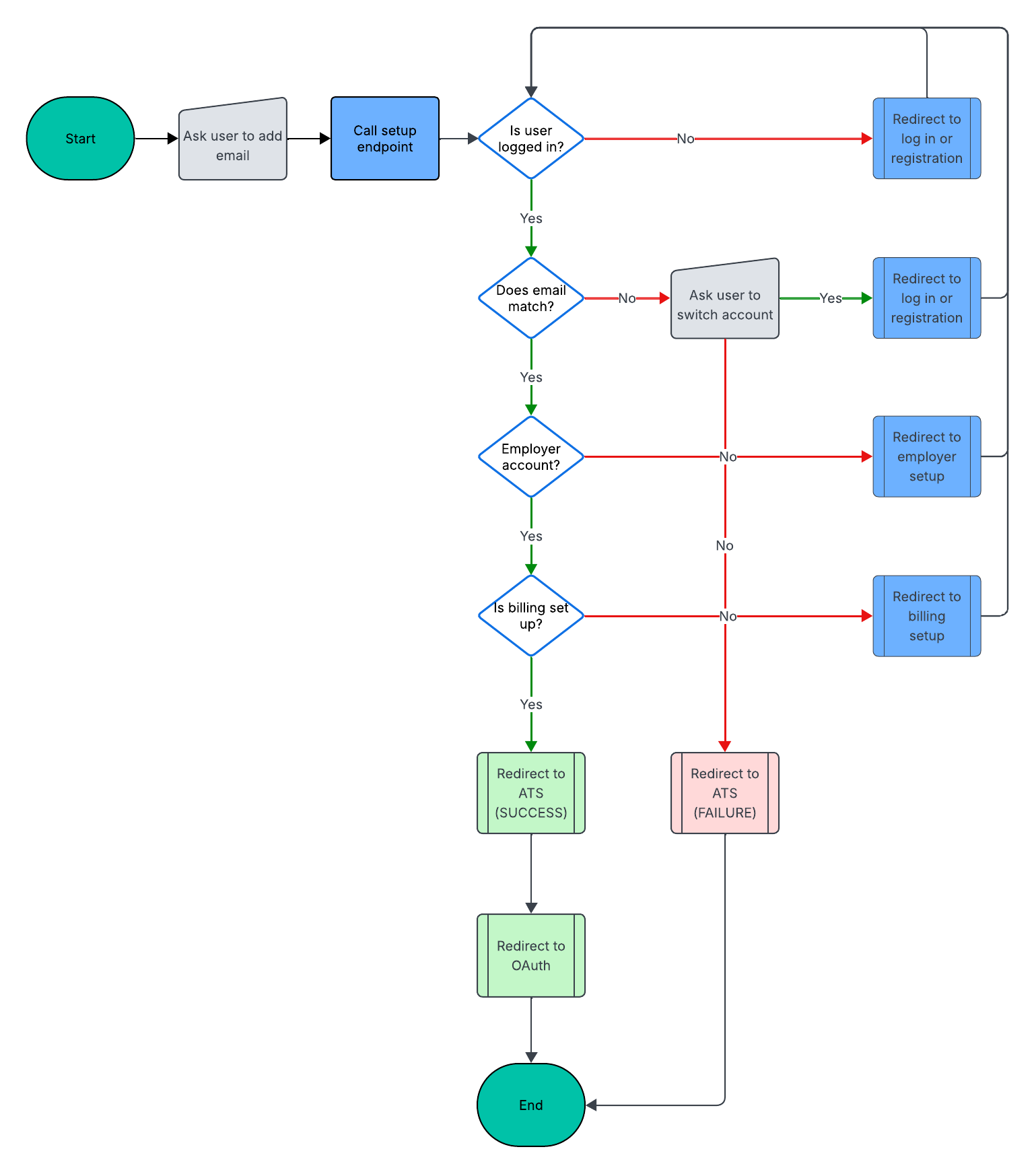
Use this flow to set up sponsoring on Indeed and to update billing information.
If a user's billing information is no longer valid, send the user through the account management flow to fix it.
Set up no sponsorship
If an employer has no Indeed account but wants to view Indeed performance data before sponsoring jobs, add type=login to the request URL. This creates the employer’s Indeed account and skips the remaining checks.
Use type=login to reach the organic job performance and prediction endpoint before the employer sponsors any jobs. After the employer finishes account setup, redirect the user to the OAuth authorization endpoint.
5. Get OAuth authorization from each employer
Get this authorization for each new employer account and its secondary users. The Sponsored Jobs API uses the standard OAuth 2.0 authorization code grant: end users grant your system access to their Indeed account and campaign data, and you call the API with the access token they provide.
Follow the authorization code grant type (3-legged OAuth) to set up your Indeed account for OAuth and get authorization to call the API for your clients.
In the authorization code request, select the scope for the endpoint you are calling. See OAuth scopes.
Along with the Sponsored Jobs Campaigns API scopes, request an employer access token. See Get employer access token.
Store the access and refresh tokens securely. Each token pair is unique to one employer account and is required to call the API. If you lose the tokens, your client must grant OAuth access again.
Secondary users and OAuth authorization
The primary user is the admin who sets up the employer account. This user has full access to all resources for that employer account. Primary users can give other people, called secondary users, access to the account. Primary users add and review secondary users and their permissions on the Indeed Account (opens in a new window) page.
Indeed recommends adding each user who manages campaigns as a secondary user, then getting OAuth authorization for each one. See Get OAuth authorization from each employer.
To list the employer accounts a user can access, get user information.
For secondary users, the Indeed account setup endpoint behaves as follows:
- If the user has full admin access to at least one employer account with valid billing information, the endpoint returns the user to your ATS with the
OKresult. - Otherwise, the endpoint shows an error page explaining that no suitable employer accounts are available. That page includes a link that returns the user to your ATS with the
BILLING_SETUP_CANCELEDerror.
After the user selects one of the employer accounts from the v2/api/userinfo endpoint, use the account management endpoint to confirm that the account has valid billing information.
6. Test your integration
To test the integration, create a separate Indeed account to use as a client account. Use a different email address from your main Indeed account.
- Test the UX with this account using
$50budgets. - Indeed covers up to
$200in sponsored job clicks on your company’s real jobs so you can verify the integration. This refund is a one-time offer for this account. - Reply to Indeed’s email with the address you use for testing so Indeed can confirm success.
7. Email a demo video to Indeed
Email a demo of your integration to marketplacesupport@indeed.com.
Subject: New ATS-SJI API Approval Request
Body:
ATS Name:
Product Contact:
BD/Marketing Contact:
Redirect URL (from Step 3):
UX Video:
Indeed replies within 48 hours to approve the integration or request changes.
8. Work with Indeed on messaging
Work with Indeed on messaging so your clients can get started, and prepare to announce the new features. Send open questions to marketplacesupport@indeed.com.