Candidate Sync for iCIMS installation guide
Install your Indeed integration with iCIMS.
Installation requires an iCIMS administrator and a user with Employer Home administrator access on Indeed.
This installation requires technical configuration. Consult your IT department before taking further action.
Overview
| Section | Audience | Objectives | Time to complete |
|---|---|---|---|
| Get required information from iCIMS | iCIMS administrator | Set up an API username and password to share with your Indeed Employer Home administrator. | ~30 minutes, one-time setup in iCIMS. |
| Setup on iCIMS | iCIMS administrator | Configure Source and Source channel entries. | ~5 minutes, one-time setup in iCIMS. |
| Install the integration with Indeed | Indeed Employer Home administrator | Get the required information from your iCIMS administrator. Install and activate your integration on Indeed. | ~5 minutes, one-time setup in Indeed. Overall integration time varies by organization. Your integration can be used almost immediately after it is fully configured. |
| Recommended topics | Indeed Employer Home administrator | Understand data requirements and how candidates are associated with requisitions. | N/A |
Get required information from iCIMS
An iCIMS administrator needs to complete the steps in this section and then provide the following information to the user with Employer Home administrator access:
- API username
- API user password
- API customer ID
-
Work with your iCIMS representative or independently submit a $0 Purchase Order/Statement of Work request in the iCIMS system for the Indeed Candidate Sync integration. This is required for the creation of the API username, password, and customer ID for this integration.
-
Add the following IP addresses to the allow list:
3.137.9.2193.135.136.2283.137.6.2233.128.63.1953.21.142.4218.219.101.101
-
Ensure the following fields can be edited:
API endpoint fields API endpoint Fields POST /people- Source
- Source channel
POST /applicantworkflows- Source
- Source channel
-
Provide the gathered information to the Employer Home administrator who will complete the installation.
Setup on iCIMS
The Source and a Source channel entries must begin with the word Indeed.
We recommend the following set up:
- Source -
Indeed Smart Sourcing - Source channel -
Indeed Candidate Sync
Select the same Source and Source channel from the dropdowns when setting up the integration on Indeed. The values entered here are what will be selectable when determining the source attribution Indeed provides for the candidate records sent via the integration. To change the source identification in the future, add the values here and make the corresponding updates in your integration's Indeed settings page.
Install the integration with Indeed
An Indeed Employer Home administrator completes these steps. To complete the installation, request the required information from your iCIMS administrator.
-
Navigate to https://employers.indeed.com/sync/integrations.
-
Select the iCIMS integration card. If iCIMS does not appear in the list, contact your Indeed representative.
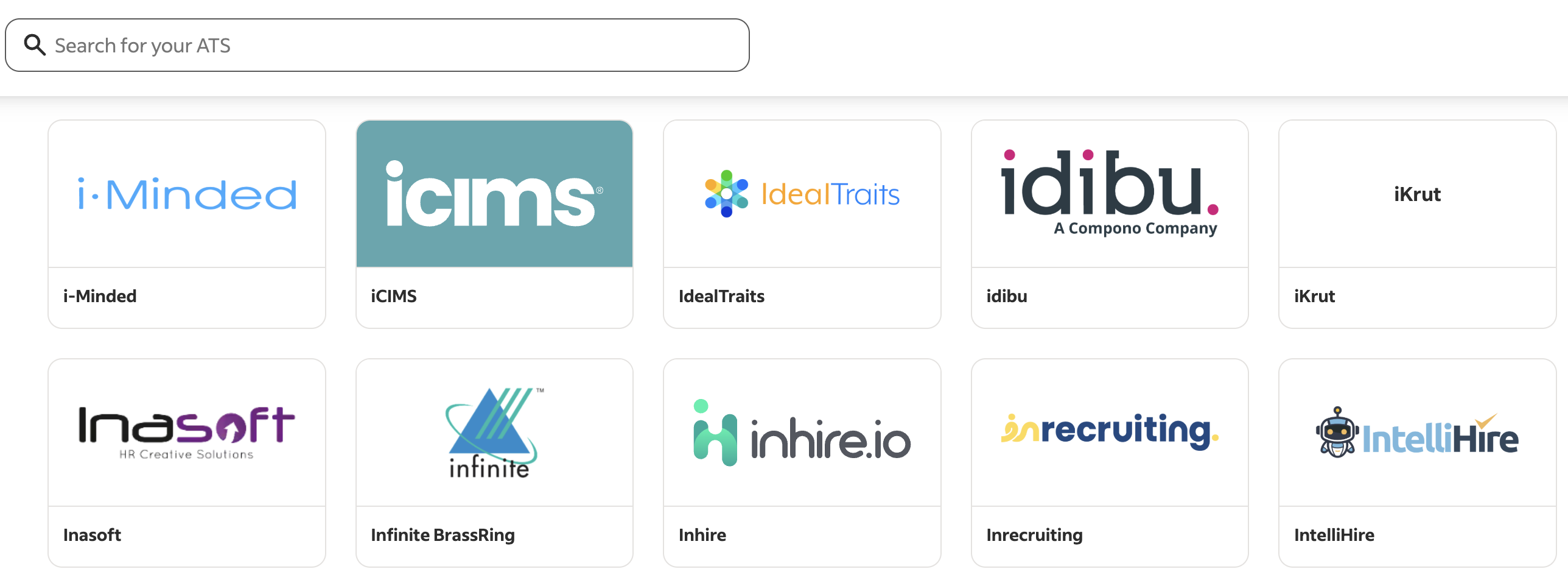
Integration card -
On the iCIMS integration screen, select Start installing.
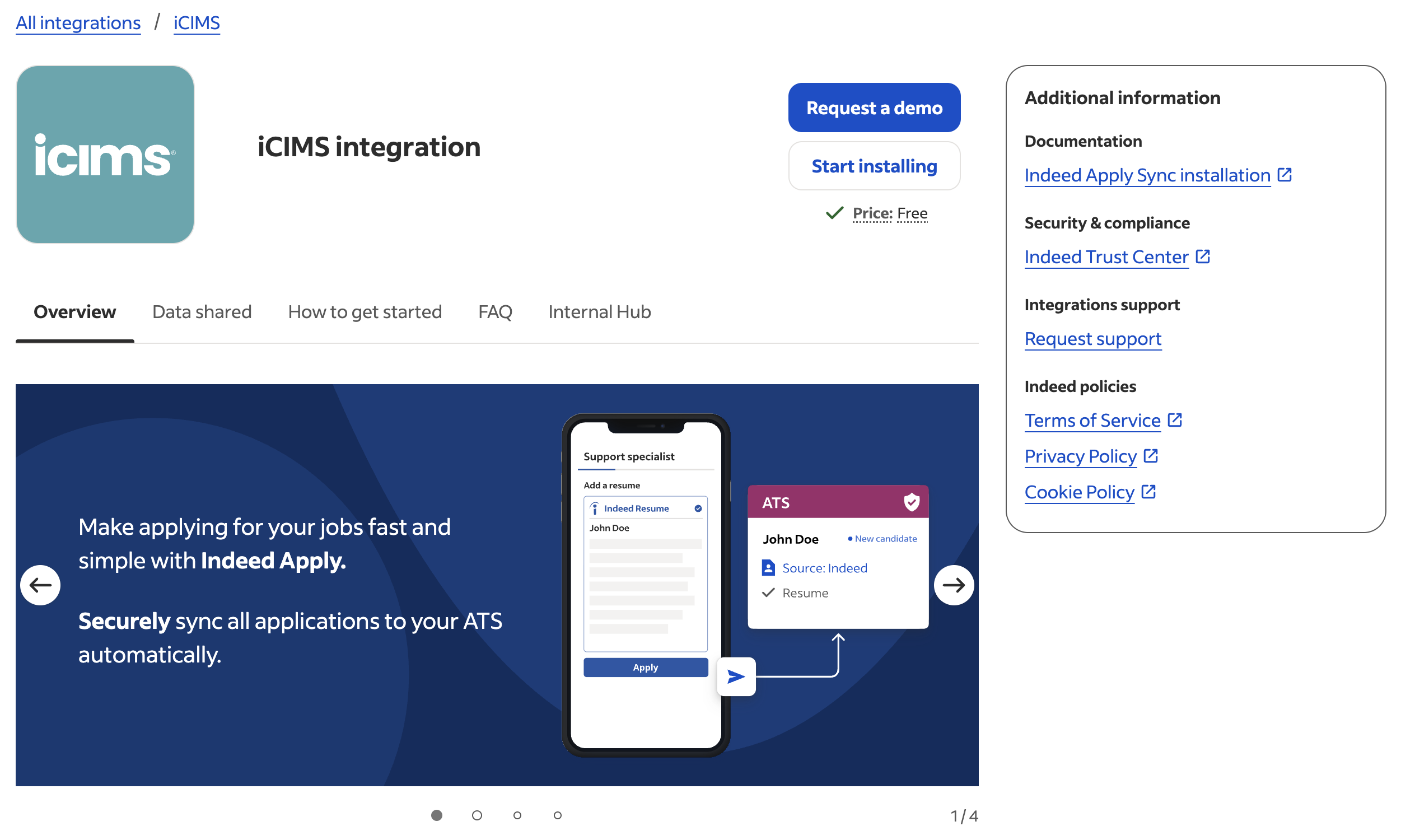
iCIMS integration screen If you already have an iCIMS integration installed, a Settings tab appears on this screen. Start the other iCIMS integration by navigating to the Settings tab and selecting either Start next installation or Get started.
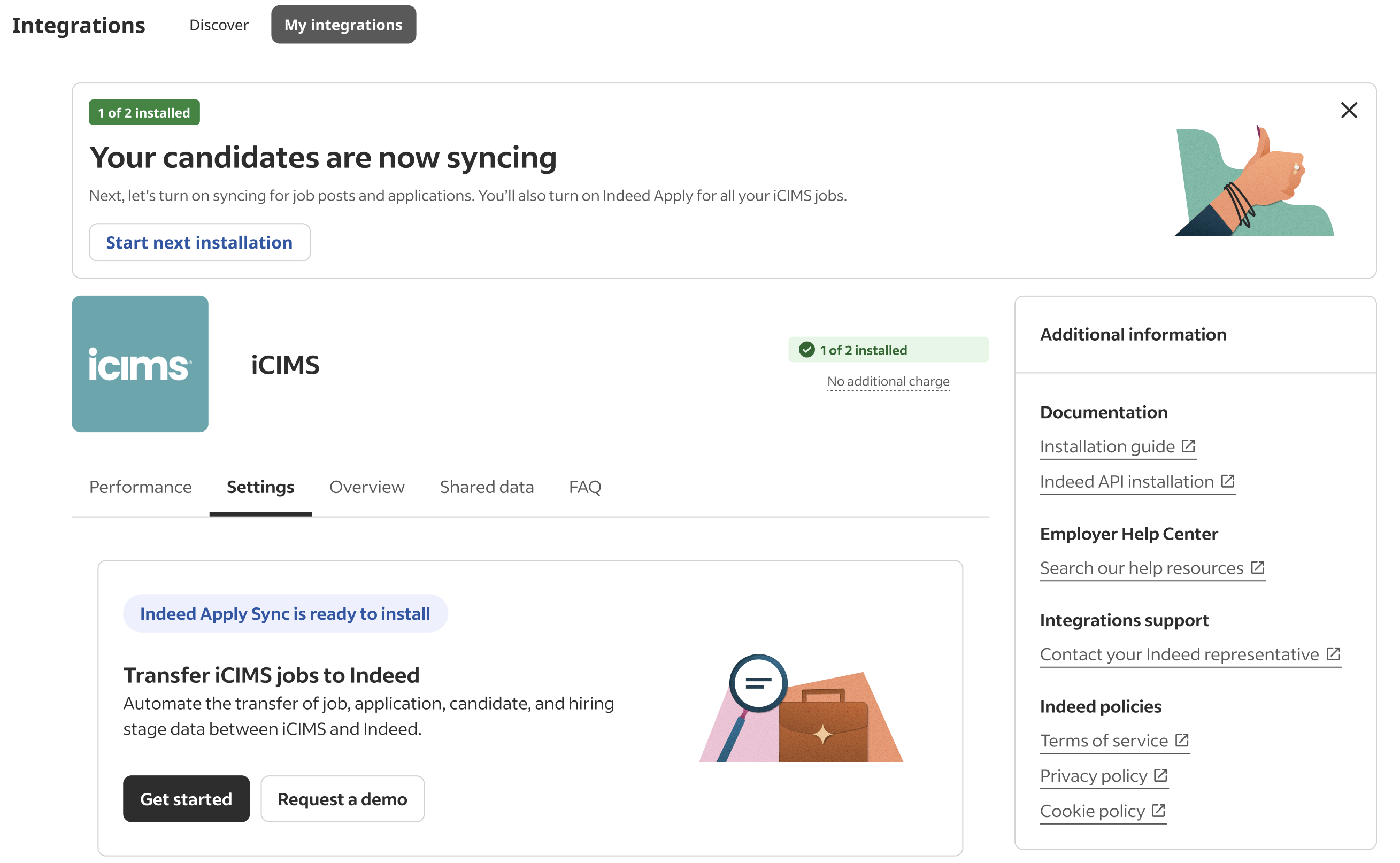
Start next installation -
On the Select an integration option screen, select Start installing under Candidate syncing for Smart Sourcing.
Candidate Sync is only available for US-based accounts.
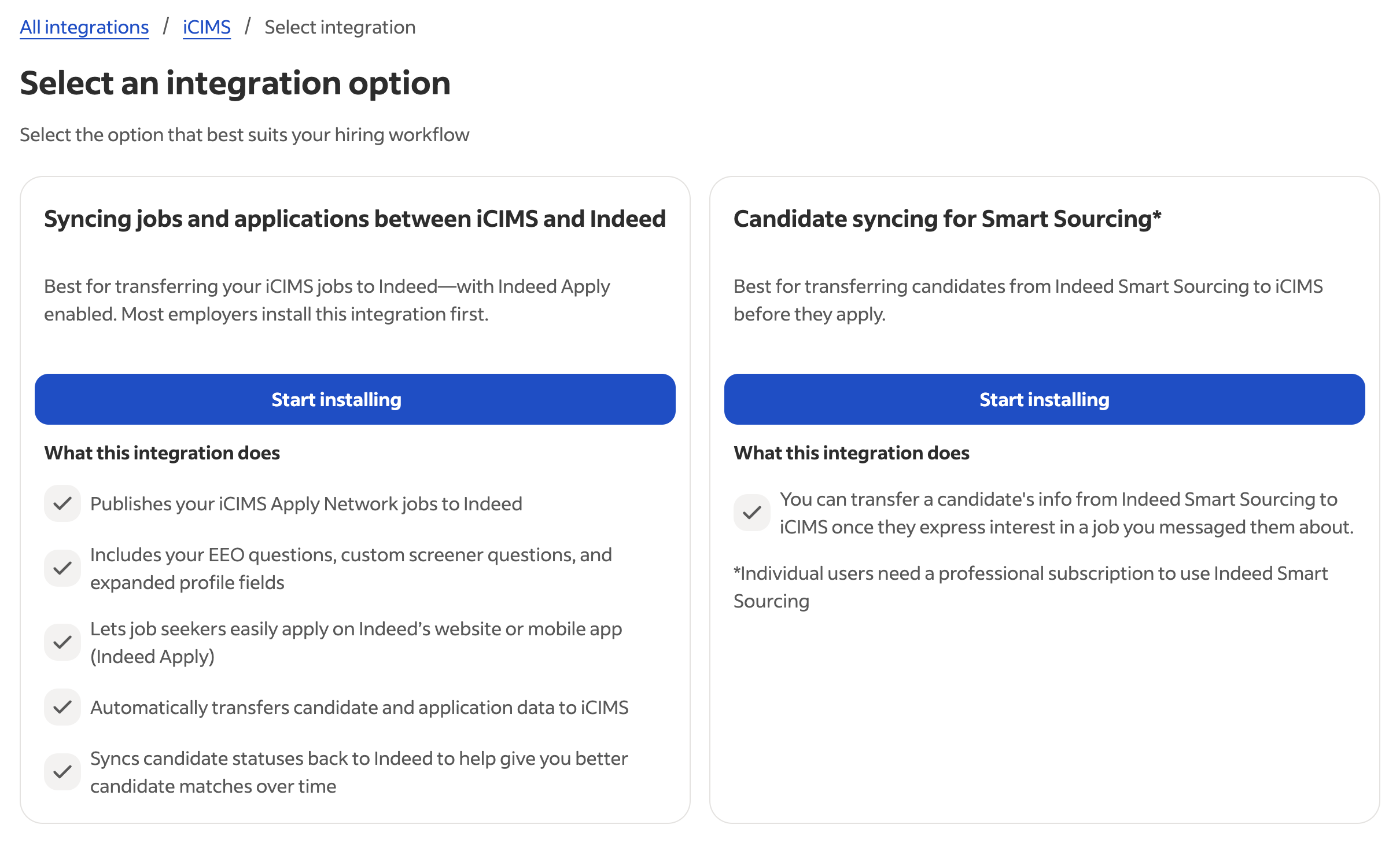
Select an integration option -
Complete the Plan for success and Configure iCIMS sections that appear first. Then, enter the information you received from the iCIMS administrator into the Enter iCIMS credentials section:
- Customer ID
- API username
- API user password
- Enable Talent Pools - Check this if you want to use Candidate Sync to send candidates to a talent pool in addition to requisitions.
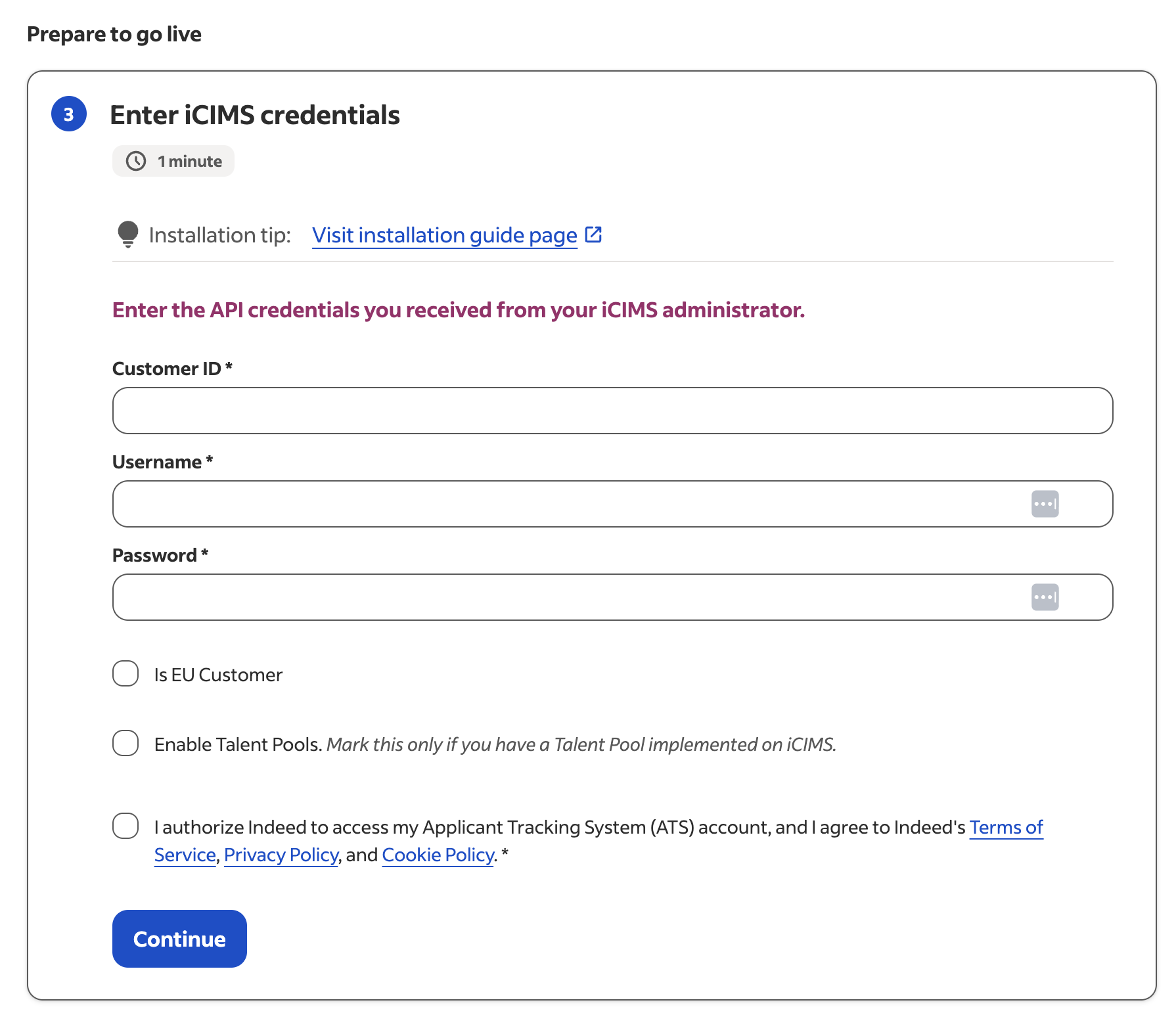
Enter iCIMS credentials -
Agree to the terms and conditions, click Continue.
-
On the next screen, select the options from the following dropdowns:
- Source (as configured in iCIMS and desired)
- Source channel (as configured in iCIMS and desired)
- Application hiring status
- Candidate folder
- Requisition folder
- Select the requisition folder that contains the requisitions from Indeed that you want to push candidates towards.
- Talent Pool folder (only available if Enable Talent Pools was selected in the previous step)
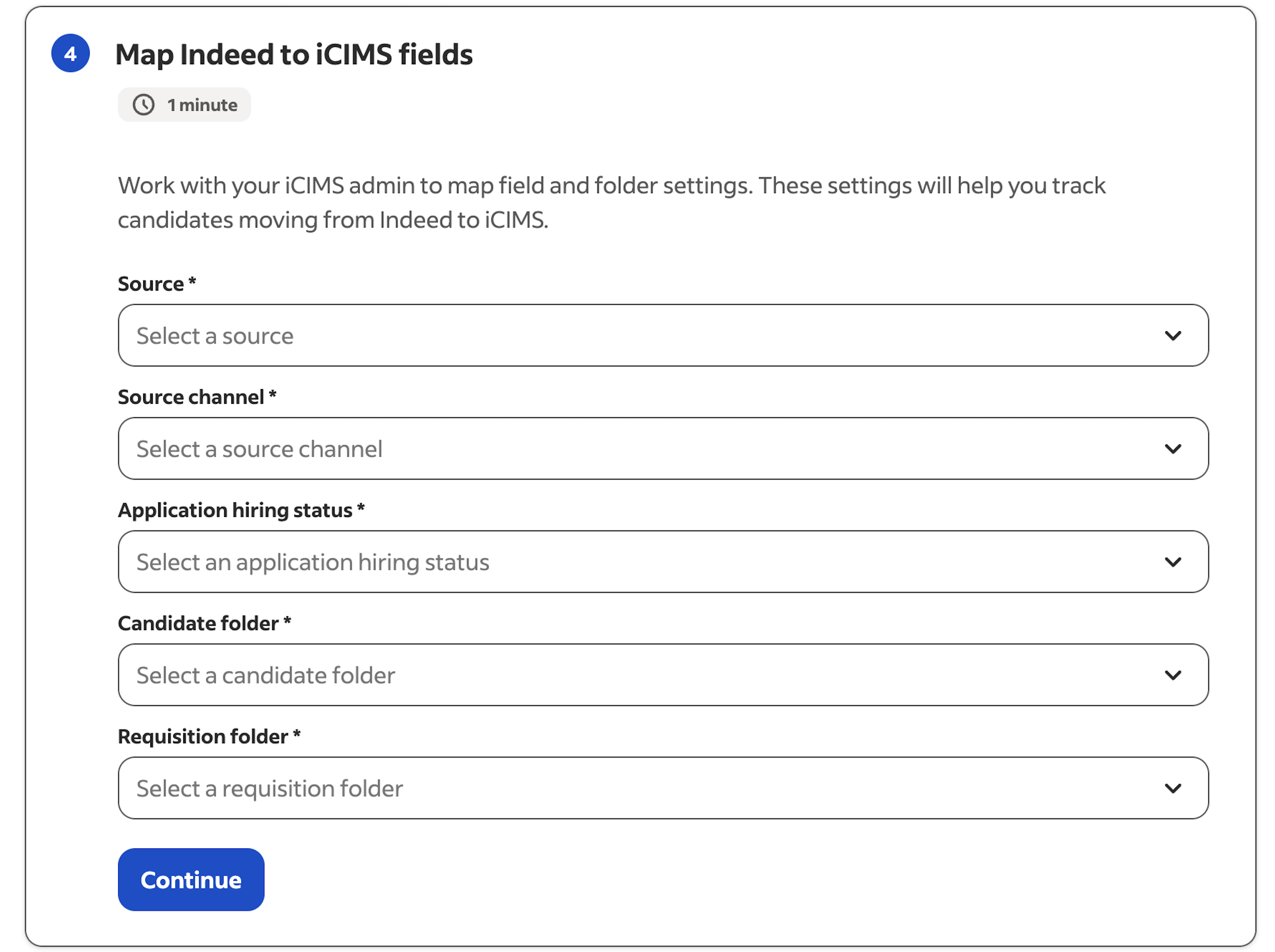
Map Indeed to iCIMS fields -
Click Continue.
-
Click Finish installation to complete the installation.
Recommended topics
To understand data requirements and how candidates are associated with job requisitions, see these topics:
- Updating requisitions and talent pools
- Data mapping
- Data validation
- Deduplication of candidates
- How to associate candidates with a requisition
- Resume handling
Updating requisitions and talent pools
Requisition/Talent Pools sync is a two-step process:
- Search for all Requisition/Talent Pools in the job folder specified during installation.
- To reduce the number of calls, fetch only new Requisition/Talent Pools on an hourly basis and update existing ones on a daily sync.
Data mapping
A record is pushed to iCIMS as a contact. This information is pushed as part of the candidate:
| Data | Description |
|---|---|
| First name | Required |
| Last name | Required |
Required | |
| Phones | Optional |
| Source channel | Required |
| Source | Required |
| Folder | Required |
| Addresses | Optional Data sent: Address line 1, city, state, country. |
| Work experience | Optional |
| Education | Optional |
| File | Optional |
| Talent Pool ID | Optional |
Data validation
The integration prevents data from being pushed if information is not provided in these required fields:
- JobID or Talent Pool ID
- First name
- Last name
Deduplication of candidates
Indeed checks for duplicate candidates based on email.
- If no duplicates are found, we create a new candidate.
- If a duplicate candidate is found, Indeed updates the existing candidate record based on the email address.
If the same candidate applies to 2 or more different jobs, the candidate information will be updated with information from the last job sent to iCIMS.
Source, source channel, application hiring status, candidate folder, talent pool folder, and requisition folder are all part of the integration configuration. If any of these values are changed, all future pushes will be affected. Previously pushed records will remain unchanged.
How to associate candidates with a requisition
A candidate must be associated with a requisition. During the job linking process, select the requisition ID and title from the iCIMS requisition dropdown list. If you are manually re-driving candidates, the dropdown is shown after you select candidates and the option to export.
Resume handling
A resume is only attached to a candidate. Resumes are not parsed or used anywhere else in the process.
iCIMS does not support multiple resumes attached to the same application. Doing so will replace the existing resume when updating the candidate information.