Sponsored Jobs API integration guide to create NodeJS ATS
Build an app that lets employers create Sponsored Jobs campaigns in your ATS.
Unless you have a written agreement with Indeed regarding your use of Indeed's APIs, by using this API or its documentation, you agree to apply the Indeed API Terms (opens in a new window) and the Additional API Terms and Guidelines to your use of Indeed's APIs.
Integration overview
This guide shows ATS partners how to build a NodeJS Express app that lets employers create Sponsored Jobs campaigns in your ATS.
- Use Framework: Node.js.
- Use OAuth: 3-legged OAuth.
- Review Sample code: Sponsored Job Campaigns API (opens in a new window).
The sample app illustrates how to:
- Share ATS jobs with Indeed using an XML job feed.
- Authorize your ATS to call the Sponsored Jobs API on behalf of employers, using 3-legged OAuth.
- Call the
/campaignsendpoint to create a Sponsored Jobs campaign.
Download the sample app code from indeedeng/sponsored-jobs-nodejs-auth-code (opens in a new window) on GitHub.
Integration steps
1. Create Indeed account
Create an Indeed user account for your application.
- Go to jp.indeed.com (opens in a new window).
- If you are signed in, open the Profile menu and select Sign out.
- Select Sign in.
- Select New to Indeed?.
- Enter your email address and password.
2. Register your app
When you become an Indeed partner, Indeed creates an app for your integration. Sign in to Partner Console (opens in a new window) to view the app and your OAuth credentials: client ID, secret, and a 3-legged OAuth authorization code. Exchange those credentials for an access token to authenticate API calls.
Enter these values for the OAuth 2.0 credential type:
Register your app Field Value Public client Whether the app is a public client.
If the app integrates the ATS JavaScript Plugin into your ATS site, select This application is a public client.
Allowed grant types Select the authorization code grant type. Redirect URL One or more redirect URLs.
If the app integrates the ATS JavaScript Plugin into your ATS site, add the URL of the page that loads the plugin.
Select Save and continue.
Choose whether Indeed reviews your app, then select Save and continue. If you skip review, users see a warning that your app has not been reviewed.
Optionally add company information, then select Save and continue.
Preview your app information, then select Complete registration.
The page shows your client ID, and your client secret for non-public clients. Keep these credentials secure: never share them or commit them to a public Git repository.
3. Create a NodeJS Express app
The sample Node.js Express app uses the open-source openid-client library to call the Indeed API.
-
Download and install Node.js and npm.
See Downloading and installing Node.js and npm (opens in a new window).
-
Generate the
Find-TalentExpress app with the HandlebarsJS view engine:npx express-generator Find-Talent --view=hbs --gitThe
--gitoption generates a.gitignorefile for Express. -
Change into the directory that contains
package.json. -
Install the required npm packages:
npm install -
Add the
openid-clientlibrary topackage.json:npm install openid-client -
Add the open-source Axios library:
npm install axios -
Start your Express app:
npm start -
Open http://localhost:3000/ (opens in a new window).
The default Express index page appears with the message
Welcome to Express.
4. Configure your app
To configure your Express app, create a configuration file, set up session state, and enable Bootstrap.
Create config.js file
To store your secrets, create a config.js file in the root of the Find-Talent app:
const config = {  oysterBaseURL: 'https://apis.indeed.com/ads/v1',  oauthDiscovery: 'https://secure.indeed.com/.well-known/openid-configuration',  oauthClientId: '90f9f4bd6a34cac31daebe1a093a606ce6b34e91ae6cfa139432ae387269a529',  oauthClientSecret: 'bML2BGshr8mLng6d1c1qCujH2PgblxEJwW5WqLxpr32XWfAFSonlhIE07buG7Nlr',  oauthRedirectURL: 'http://localhost:3000/oauth-callback',  scope: 'employer_access offline_access employer.advertising.account.read employer.advertising.campaign',  sessionSecret: 'Something Secret!',};
module.exports = config;
The scope setting lists the permissions your OAuth app needs. For example, to create sponsored jobs campaigns, include employer.advertising.campaign. For the full list, see Sponsored Jobs API scopes for ATS partners.
Replace oauthClientId and oauthClientSecret with the client ID and secret for your registered OAuth app. Find them on the Manage app credentials (opens in a new window) page.
Express uses sessionSecret for session state. Replace Something Secret! with your own secret.
Because config.js contains secrets, keep it private. For example, do not store it in a public GitHub repository.
Configure session state
To avoid requesting an access token repeatedly, store the token in session state. To enable session state, run:
npm install express-sessionThis command adds a dependency to package.json.
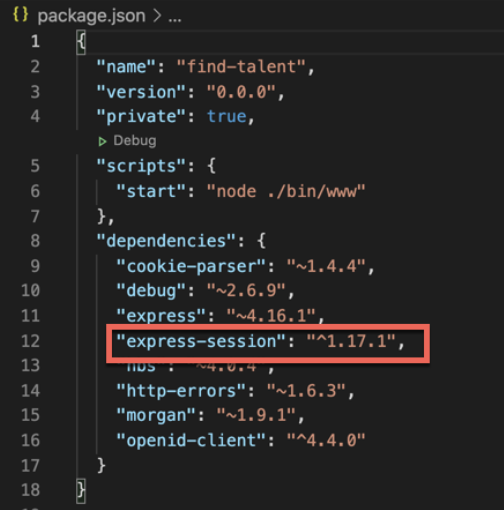
Next, configure session state in app.js. Add this code near the top of the file:
const config = require('./config');const session = require('express-session');Then find this line:
var app=express(); Add this code below it:
// session setupapp.use(session({ secret: config.sessionSecret, resave: false, saveUninitialized: true, cookie: { secure: false },}));In your controllers, use req.session to store data across requests.
Configure Bootstrap
To style your app quickly, use the open-source Bootstrap CSS framework. In views/layout.hbs, add this code below the <title> tag:
<link   href="https://cdn.jsdelivr.net/npm/bootstrap@5.0.0-beta2/dist/css/bootstrap.min.css"   rel="stylesheet"   integrity="sha384-BmbxuPwQa2lc/FVzBcNJ7UAyJxM6wuqIj61tLrc4wSX0szH/Ev+nYRRuWlolflfl"   crossorigin="anonymous">
<script src="https://cdn.jsdelivr.net/npm/bootstrap@5.0.0-beta2/dist/js/bootstrap.bundle.min.js"   integrity="sha384-b5kHyXgcpbZJO/tY9Ul7kGkf1S0CWuKcCD38l8YkeH8z8QjE0GmW1gYU5S9FOnJ0"   crossorigin="anonymous"></script>
The complete layout.hbs template looks like this:
<!DOCTYPE html><html>  <head>    <title>Sponsor Jobs</title>
    <link href="https://cdn.jsdelivr.net/npm/bootstrap@5.0.0-beta2/dist/css/bootstrap.min.css"       rel="stylesheet"       integrity="sha384-BmbxuPwQa2lc/FVzBcNJ7UAyJxM6wuqIj61tLrc4wSX0szH/Ev+nYRRuWlolflfl"       crossorigin="anonymous">    <script src="https://cdn.jsdelivr.net/npm/bootstrap@5.0.0-beta2/dist/js/bootstrap.bundle.min.js"       integrity="sha384-b5kHyXgcpbZJO/tY9Ul7kGkf1S0CWuKcCD38l8YkeH8z8QjE0GmW1gYU5S9FOnJ0"       crossorigin="anonymous"></script>
    <link rel='stylesheet' href='/stylesheets/style.css' />  </head>  <body>    {{>header}}    <div class="container">      {{{body}}}    </div>  </body></html>
5. Expose XML job feed
Before an employer can sponsor a job on Indeed, Indeed must know about the job. To make jobs hosted on your ATS available to Indeed, expose an XML job feed in the format this section describes.
Return static list of jobs
A real ATS stores employers' jobs in a database. To keep the sample app simple, create a method that returns a static list:
static listJobs() { return [ { id: 2312, title: 'Product Manager', description: 'Manage products', posted: new Date('1/12/2021'), url: 'https://example.com/job/2312', city: 'Seattle', state: 'WA', country: 'USA', }, { id: 2313, title: 'Python Engineer', description: 'Must be an expert in Django.', posted: new Date('1/12/2021'), url: 'https://example.com/job/2313', city: 'Seattle', state: 'WA', country: 'USA', }, { id: 2314, title: 'Senior Python Engineer', description: 'Must be an expert in Django.', posted: new Date('1/12/2021'), url: 'https://example.com/job/2314', city: 'Seattle', state: 'WA', country: 'USA', }, ];}This method is in \services\JobService.js.
Install npm XML library
To convert the job list into XML, install the Node Package Manager (npm) XML library:
npm install xmlAdd sourceName to each job
Each job must include all data Indeed requires, especially referenceNumber and sourceName. This method, also in services\JobService.js, adds that data:
static listJobsAsXML() {  const jobs = this.listJobs().map((j) => ({    job: [      { title: { _cdata: j.title } },      { description: { _cdata: j.description } },      { date: { _cdata: j.posted } },      { referenceNumber: { _cdata: j.id } },      { url: { _cdata: j.url } },      { company: { _cdata: 'US Robotics and Mechanical Men' } },      { sourceName: { _cdata: 'Apple' } },      { city: { _cdata: j.city } },      { state: { _cdata: j.state } },      { country: { _cdata: j.country } },      { email: { _cdata: 'your_email@your_company.com' } },      { metadata: { _cdata: '' } },    ],  }));
  return [    {      source: [        { publisher: 'Superhero ATS' },        { publisherurl: 'https://example.com' },        { lastBuildDate: Date() },        ...jobs,      ],    },  ];}
listJobsAsXML() converts each job into a format Indeed can read. Each job includes a referenceNumber, which is a unique ID, and a sourceName, set to Apple. Indeed uses sourceName to associate each job with the correct employer.
Add XML job feed route
Next, expose your job list as XML. Add this jobFeed.js file to your app's routes folder:
const express = require('express');const xml = require('xml');const JobService = require('../services/JobService');
const router = express.Router();
router.get('/', async (req, res) => {  res.contentType('application/xml');  res.send(xml(JobService.listJobsAsXML(), true));});
module.exports = router;
This route calls listJobsAsXML() and passes the result to the XML library, which exposes the job list in a format Indeed can read:
<source> <publisher>Superhero ATS</publisher> <publisherurl>https://example.com</publisherurl> <lastBuildDate>Mon May 24 2021 14:43:59 GMT-0700 (Pacific Daylight Time)</lastBuildDate> <job> <title><![CDATA[Product Manager]]></title> <description><![CDATA[Manage products]]></description> <date><![CDATA[Tue Jan 12 2021 00:00:00 GMT-0800 (Pacific Standard Time)]]></date> <referenceNumber><![CDATA[2312]]></referenceNumber> <url><![CDATA[https://example.com/job/2312]]></url> <company><![CDATA[US Robotics and Mechanical Men]]></company> <sourceName><![CDATA[Apple]]></sourceName> <city><![CDATA[Seattle]]></city> <state><![CDATA[WA]]></state> <country><![CDATA[USA]]></country> <email><![CDATA[your_email@your_company.com]]></email> <metadata/> </job> <job> <title><![CDATA[Python Engineer]]></title> <description><![CDATA[Must be an expert in Django.]]></description> <date><![CDATA[Tue Jan 12 2021 00:00:00 GMT-0800 (Pacific Standard Time)]]></date> <referenceNumber><![CDATA[2313]]></referenceNumber> <url><![CDATA[https://example.com/job/2313]]></url> <company><![CDATA[US Robotics and Mechanical Men]]></company> <sourceName><![CDATA[Apple]]></sourceName> <city><![CDATA[Seattle]]></city> <state><![CDATA[WA]]></state> <country><![CDATA[USA]]></country> <email><![CDATA[your_email@your_company.com]]></email> <metadata/> </job> <job> <title><![CDATA[Senior Python Engineer]]></title> <description><![CDATA[Must be an expert in Django.]]></description> <date><![CDATA[Tue Jan 12 2021 00:00:00 GMT-0800 (Pacific Standard Time)]]></date> <referenceNumber><![CDATA[2314]]></referenceNumber> <url><![CDATA[https://example.com/job/2314]]></url> <company><![CDATA[US Robotics and Mechanical Men]]></company> <sourceName><![CDATA[Apple]]></sourceName> <city><![CDATA[Seattle]]></city> <state><![CDATA[WA]]></state> <country><![CDATA[USA]]></country> <email><![CDATA[your_email@your_company.com]]></email> <metadata/> </job></source>6. Create homepage for app
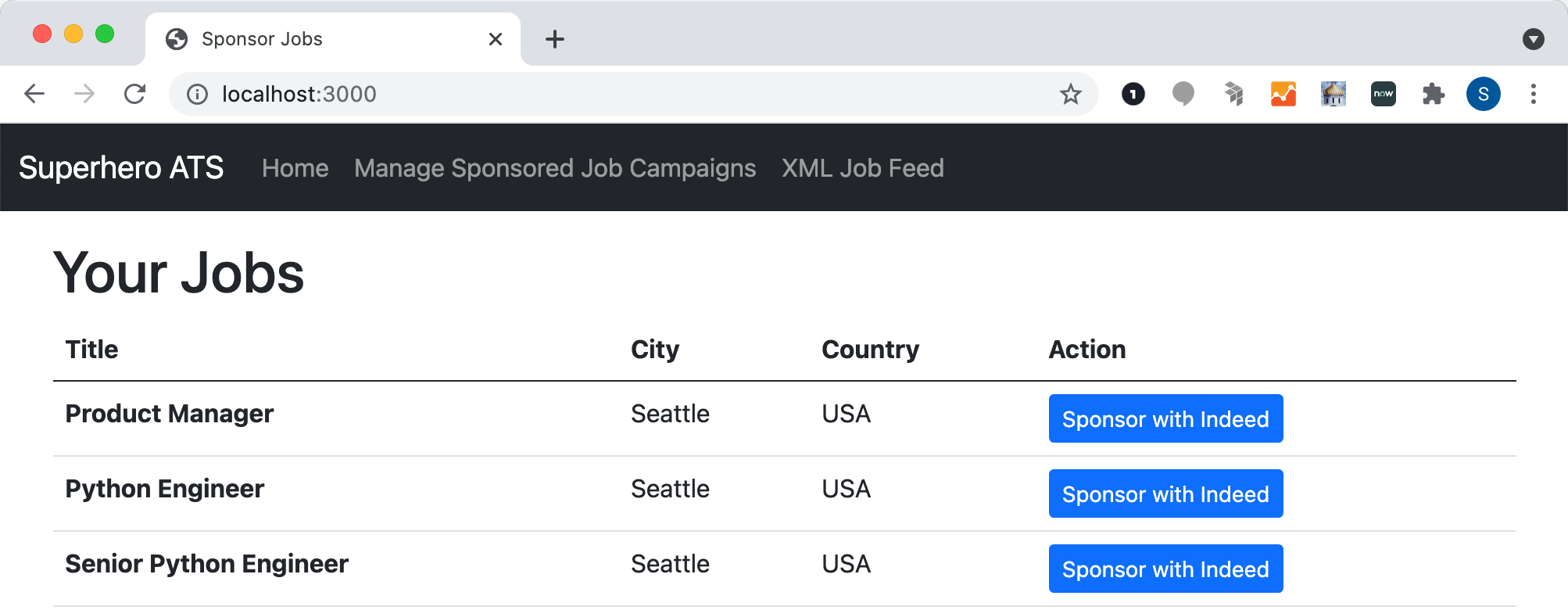
The sample app's homepage lists jobs with a Sponsor with Indeed button next to each one.
The homepage uses the JobService listJobs() method. Its JavaScript code in routes\index.js is:
const express = require('express');const JobService = require('../services/JobService');
const router = express.Router();
/* GET home page. */router.get('/', async (req, res) => {  const jobs = JobService.listJobs();  res.render('index', {    jobs,  });});
module.exports = router;
The homepage view is:
<h1>Your Jobs</h1>
{{#unless jobs}}  <div class="alert alert-primary mt-3" role="alert">  <p>      You don't have any jobs.  </p>  </div>{{else}}<table class="table">  <thead>    <tr>      <th scope="col">Title</th>      <th scope="col">City</th>      <th scope="col">Country</th>      <th scope="col">Action</th>    </tr>  </thead>  <tbody>    {{#each jobs}}    <tr>      <th scope="row">{{this.title}}</th>      <td>{{this.city}}</td>      <td>{{this.country}}</td>      <td><a href="/campaign/create/{{this.id}}" class="btn btn-primary btn-sm" role="button">Sponsor with Indeed</a></td>    </tr>    {{/each}}  </tbody></table>{{/unless}}
When an employer selects Sponsor with Indeed, the app sends the employer to the /campaign/create route.
7. Authorize your app to call Indeed APIs
The sample app enforces OAuth authorization with Express middleware. The middleware checks whether the current user has an OAuth access token, and if not, redirects the user to the Indeed OAuth consent screen.
The middleware is in middleware\IndeedOAuthAuthorize.js:
const config = require('../config');const IndeedOAuthService = require('../services/IndeedOAuthService');
async function IndeedOAuthAuthorize(req, res, next) {  const indeedOAuth = new IndeedOAuthService(config, req.session);  const tokenSet = await indeedOAuth.getTokenSet(null);
  if (!tokenSet) {    req.session.returnUrl = req.originalUrl;    const authorizeURL = await indeedOAuth.getAuthorizeURL('employer_access offline_access');    res.redirect(authorizeURL);  } else {    res.locals.tokenSet = tokenSet;    next();  }}
module.exports = IndeedOAuthAuthorize;
IndeedOAuthAuthorize enforces authorization on every route that needs an OAuth access token. For example, the Sponsor with Indeed button links to the /campaign/create route, which uses the middleware:
router.get('/create/:jobId', IndeedOAuthAuthorize, async (req, res) => { ....ommited...}If an employer requests /campaign/create and the app is not authorized to act for that employer, the app redirects the employer to the OAuth consent screen:
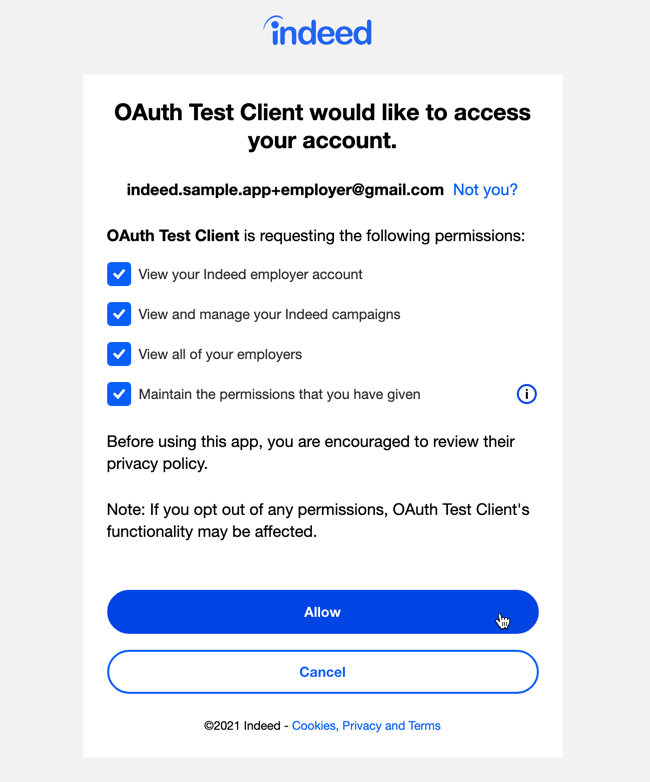
After the employer selects Allow, the employer selection screen appears. Here the employer chooses which employer to associate with the OAuth access token, such as US Robotics and Mechanical Men.
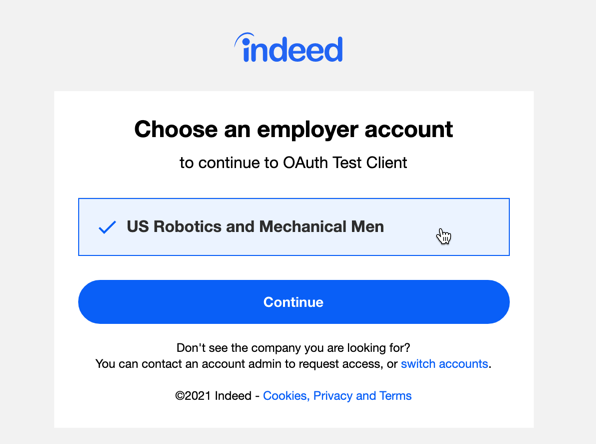
After the employer selects Continue, the app gets an OAuth access token from Indeed and stores it in session state. On later routes that require authorization, the middleware reads the token from session state, so the employer does not authorize the app again.
8. Create sponsored jobs campaign
To let an employer sponsor one of their Indeed jobs, create an Indeed sponsored jobs campaign.
Create GET /campaign/create route
Create the campaign.js route to handle an HTTP GET request:
router.get('/create/:jobId', IndeedOAuthAuthorize, async (req, res) => {  const jobId = Number(req.params.jobId);  const job = JobService.getJob(jobId);  const campaignService = new CampaignService(config, req.session, res.locals.tokenSet);
  // get account  const account = await campaignService.getAccount();  if (!account.jobSourceList || account.jobSourceList.length === 0) {    res.redirect('/campaign/no-job-source');  } else {    // create campaign defaults    const newCampaign = {      startDate: getISODateString(new Date()),      targetEndDate: getISODateString(getFutureDate(3)),      budgetMonthlyLimit: 100.00,      budgetOneTimeLimit: 100.00,    };
    res.render('campaign-create', {      job,      newCampaign,    });  }});
The code calls campaignService.getAccount() to get the employer's Indeed account, which returns a response like this:
{ "jobSourceList": [{ "id": "67c9fd651aff79bf", "siteName": "Apple" }], "contact": "Susan Calvin", "company": "US Robotics and Mechanical Men", "id": "5266416001932948", "email": "indeed.sample.app+employer@gmail.com"}The account information includes a jobSourceList, where each job source has an id and a siteName. The siteName must match the sourceName for each job in the XML job feed. Use the id and siteName to create the campaign.
The route checks that the account has at least one job source. Without one, the employer cannot sponsor a job, and the sample app shows an error page.
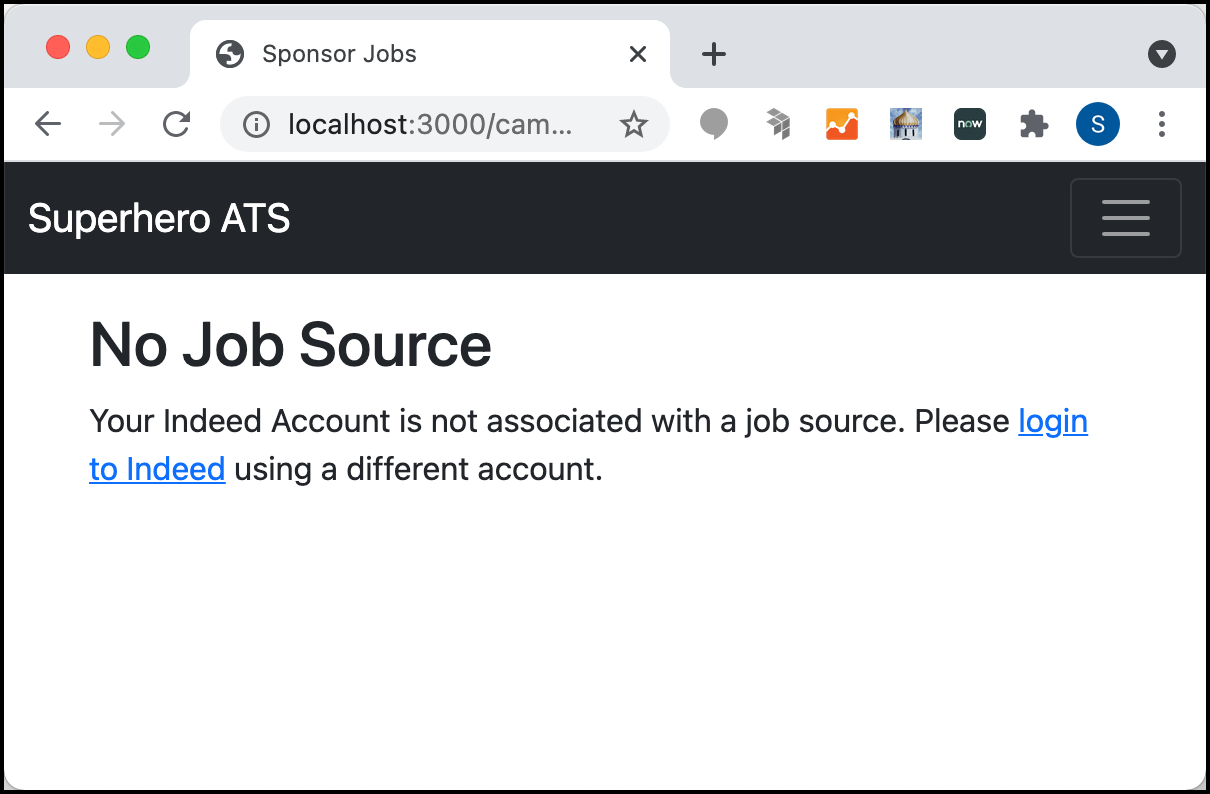
Create campaign-create view
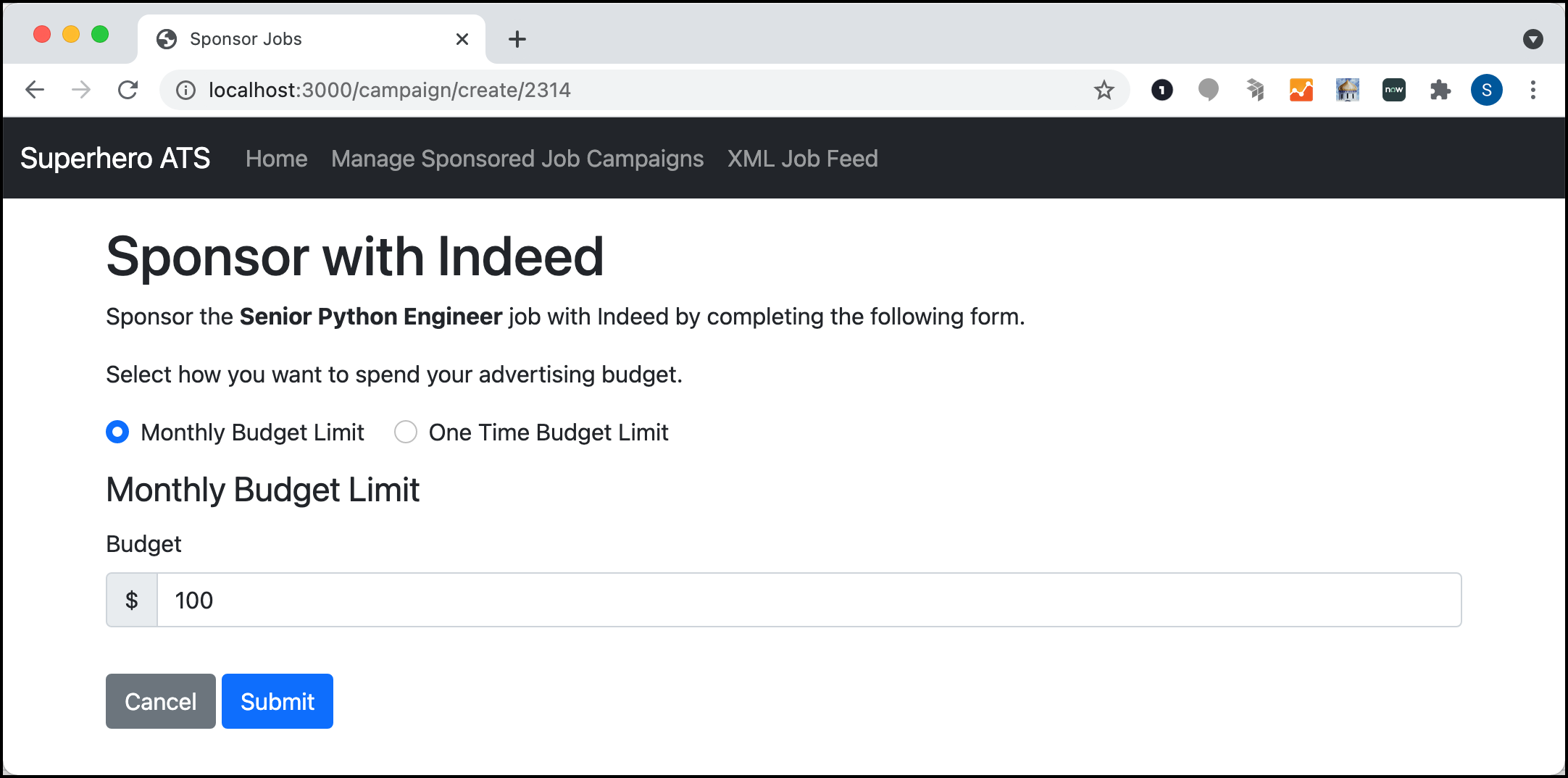
If the account has at least one job source, the sample app shows the create-campaign view, where the employer sets a budget to sponsor a job. The employer can set a monthly budget:
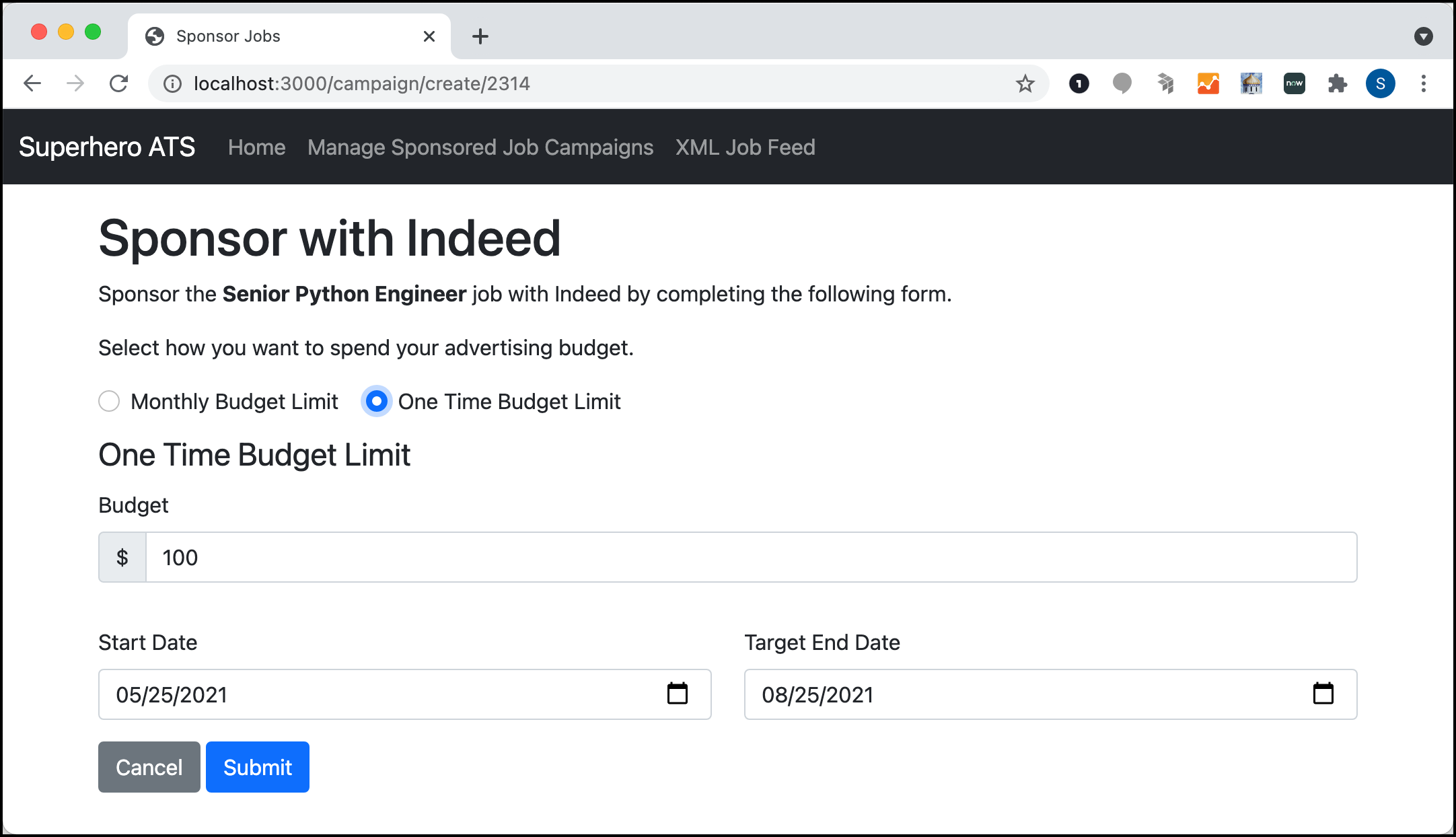
Or a one-time budget with start and end dates:
The markup for the create-campaign view is:
<h1>Sponsor with Indeed</h1>
<p>  Sponsor the <b>{{job.title}}</b> job with Indeed by completing the following form.</p>
<form method="post" action="/campaign/create/{{job.id}}">
  <div class="row g-3">    <div class="col">      <p>        Select how you want to spend your advertising budget.      </p>      <div class="form-check form-check-inline">        <input class="form-check-input" name="selectBudgetType" type="radio" id="monthlyRadio" value="monthly" checked />        <label class="form-check-label" for="monthlyRadio">Monthly Budget Limit</label>      </div>
      <div class="form-check form-check-inline">        <input class="form-check-input" name="selectBudgetType" type="radio" id="oneTimeRadio" value="oneTime">        <label class="form-check-label" for="oneTimeRadio">One Time Budget Limit</label>      </div>    </div>  </div>
  <fieldset id="monthly" class="mt-2">    <legend>Monthly Budget Limit</legend>
    <div class="row mb-3">      <div class="col">        <label for="budgetMonthlyLimit" class="form-label">Budget</label>        <div class="input-group mb-3">          <span class="input-group-text">$</span>          <input name="budgetMonthlyLimit" id="budgetMonthlyLimit" type="number" min="50" step="any"            class="form-control" placeholder="Budget" value="{{newCampaign.budgetMonthlyLimit}}" />        </div>      </div>    </div>
  </fieldset>
  <fieldset id="oneTime" style="display:none" class="mt-2">    <legend>One Time Budget Limit</legend>
    <div class="row mb-3">      <div class="col form-group">        <label for="budgetOneTimeLimit" class="form-label">Budget</label>        <div class="input-group mb-3">          <span class="input-group-text">$</span>          <input name="budgetOneTimeLimit" id="budgetOneTimeLimit" type="number" min="50" step="any"            class="form-control" value="{{newCampaign.budgetOneTimeLimit}}" />        </div>      </div>    </div>
    <div class="row mb-3">      <div class="col">        <label for="startDate" class="form-label">Start Date</label>        <input name="startDate" id="startDate" type="date" class="form-control"           placeholder="Start Date" value="{{newCampaign.startDate}}" />      </div>      <div class="col">        <label for="targetEndDate" class="form-label">Target End Date</label>        <input name="targetEndDate" id="targetEndDate" type="date" class="form-control"           placeholder="Target End Date" value="{{newCampaign.targetEndDate}}" />      </div>    </div>
  </fieldset>
  <div class="row mb-3">    <div class="col">      <a class="btn btn-secondary mr-2" href="/">Cancel</a>      <button type="submit" class="btn btn-primary">Submit</button>    </div>  </div>
</form>
<script>  const monthly = document.getElementById('monthly');  const oneTime = document.getElementById('oneTime');
  document.getElementById('oneTimeRadio').addEventListener('click', (e) => {    monthly.style.display = 'none';    oneTime.style.display = 'block';  });
  document.getElementById('monthlyRadio').addEventListener('click', (e) => {    monthly.style.display = 'block';    oneTime.style.display = 'none';  });</script>
The markup uses Bootstrap to build an HTML form with two fieldsets, one for the monthly budget and one for the one-time budget. The JavaScript at the bottom of the view shows only one fieldset at a time.
Create POST /campaign/create route
When an employer submits the create-campaign form, the sample app calls the POST /campaign/create route. This route reads the form values and calls the JobService createCampaign() method to create the campaign.
router.post('/create/:jobId', IndeedOAuthAuthorize, async (req, res) => {  const campaignService = new CampaignService(config, req.session, res.locals.tokenSet);
  // get job  const jobId = Number(req.params.jobId);  const job = JobService.getJob(jobId);
  // get form fields  const newCampaign = {    name: `${job.title} - ${new Date().toUTCString()}`,    budgetType: req.body.selectBudgetType,    budgetMonthlyLimit: Number(req.body.budgetMonthlyLimit),    budgetOneTimeLimit: Number(req.body.budgetOneTimeLimit),    startDate: getISODateString(new Date(req.body.startDate)),    targetEndDate: getISODateString(new Date(req.body.targetEndDate)),  };
  // get account  const account = await campaignService.getAccount();
  // sponsor job  campaignService.createCampaign(account, job, newCampaign);
  res.redirect('/');});
Create createCampaign method
The createCampaign() method in services\JobService.js calls the Sponsored Jobs API to create the job campaign.
It uses the job source ID and siteName from the employer account, and includes the job ID, which is the reference number from the XML job feed, in the request.
async createCampaign(account, job, newCampaign) {  let request = {    name: newCampaign.name,    jobsSourceId: account.jobSourceList[0].id,    jobsSourceName: account.jobSourceList[0].siteName,    jobsToInclude: 'query',    jobsQuery: `refnum:${job.id}`,  };
  if (newCampaign.budgetType === 'monthly') {    request = {      ...request,      ...{        budgetMonthlyLimit: newCampaign.budgetMonthlyLimit,        budgetFirstMonthBehavior: 'startNowProratedAmount',      },    };  }  if (newCampaign.budgetType === 'oneTime') {    request = {      ...request,      ...{        budgetOnetimeLimit: newCampaign.budgetOneTimeLimit,        startDate: newCampaign.startDate,        targetEndDate: newCampaign.targetEndDate,      },    };  }  const url = `${this.config.oysterBaseURL}/campaigns`;  const results = await this.requestResource(url, 'POST', request);  return results;}
createCampaign() calls the Sponsored Jobs API through requestResource(), which uses Axios to make the HTTP request.
The sample code passes the OAuth access token in the Authorization header. Indeed rejects any request that omits it.
async requestResource(url, method = 'GET', data) { console.info(`Axios ${method}: ${url}`); try { const results = await axios({ url, method, headers: { Authorization: `Bearer ${this.tokenSet.access_token}`, }, data, }); return results.data.data; } catch (err) { console.error('Error when making request'); console.dir(err.response.data, { depth: null }); throw err; }}After the employer submits the form, redirect the employer to the sample app homepage.
9. View sponsored jobs campaigns
To list all campaigns, an employer selects Manage Sponsored Jobs Campaigns in the header.
You can list campaigns, get details for one campaign, and pause, unpause, or delete campaigns.
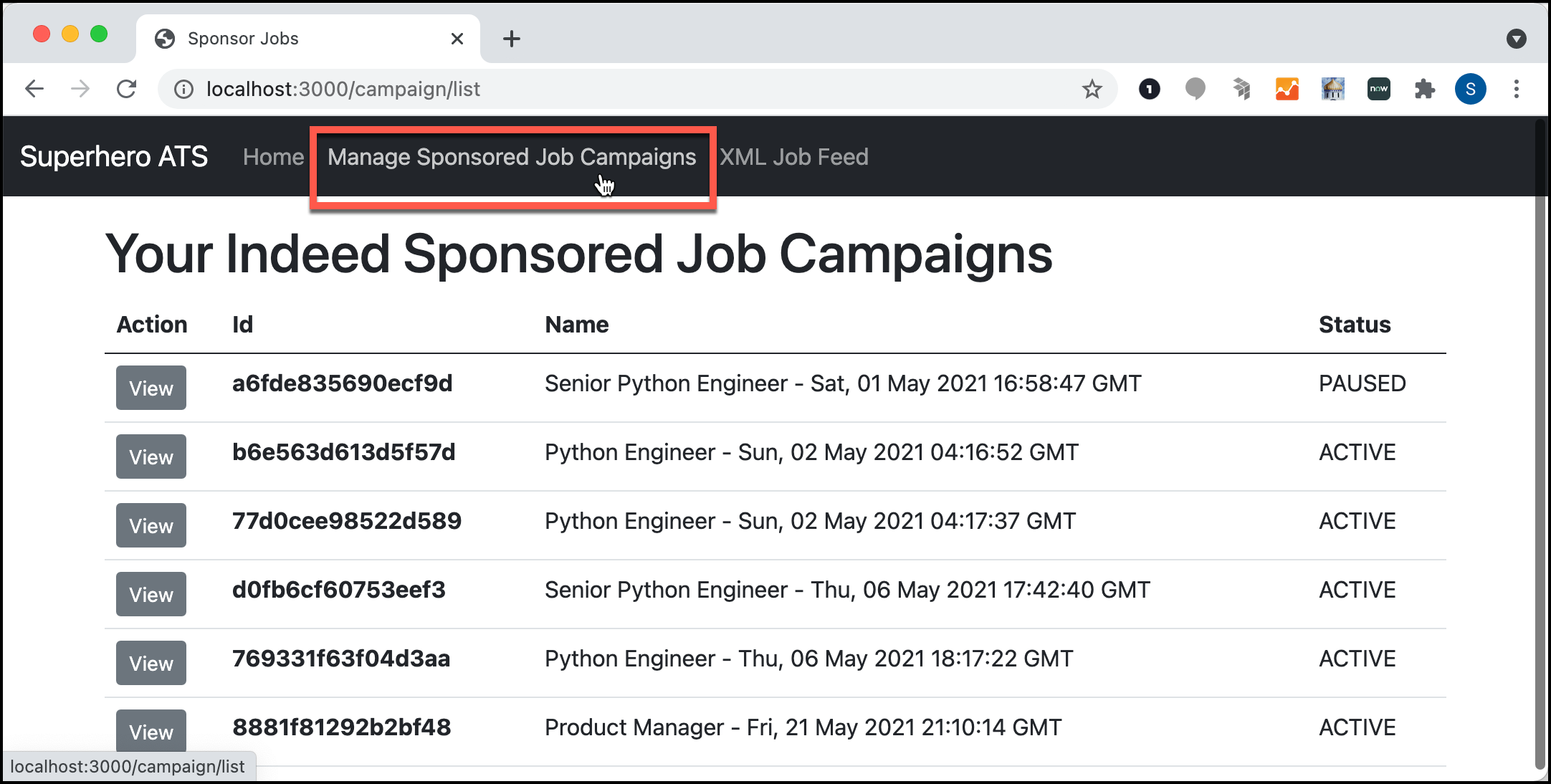
List campaigns
To list an employer's campaigns, make a GET request to /campaigns.
The getCampaigns() method in CampaignService.js is:
async getCampaigns() { const url = `${this.config.oysterBaseURL}/campaigns`; const results = await this.requestResource(url); // filter out deleted campaigns return results.Campaigns.filter((c) => c.Status !== 'DELETED');}It returns a JSON response:
[{    "Name": "Senior Python Engineer - Sat, 01 May 2021 16:58:47 GMT",    "Id": "a6fde835690ecf9d",    "Status": "PAUSED"  },  {    "Name": "Senior Python Engineer - Thu, 06 May 2021 17:42:40 GMT",    "Id": "d0fb6cf60753eef3",    "Status": "ACTIVE"  },
  {    "Name": "Product Manager - Fri, 21 May 2021 21:10:14 GMT",    "Id": "8881f81292b2bf48",    "Status": "ACTIVE"  }]
The response includes Name, Id, and Status for each campaign. A campaign can be ACTIVE, PAUSED, or DELETED. The getCampaigns() method filters out deleted campaigns.
Get sponsored job campaign details
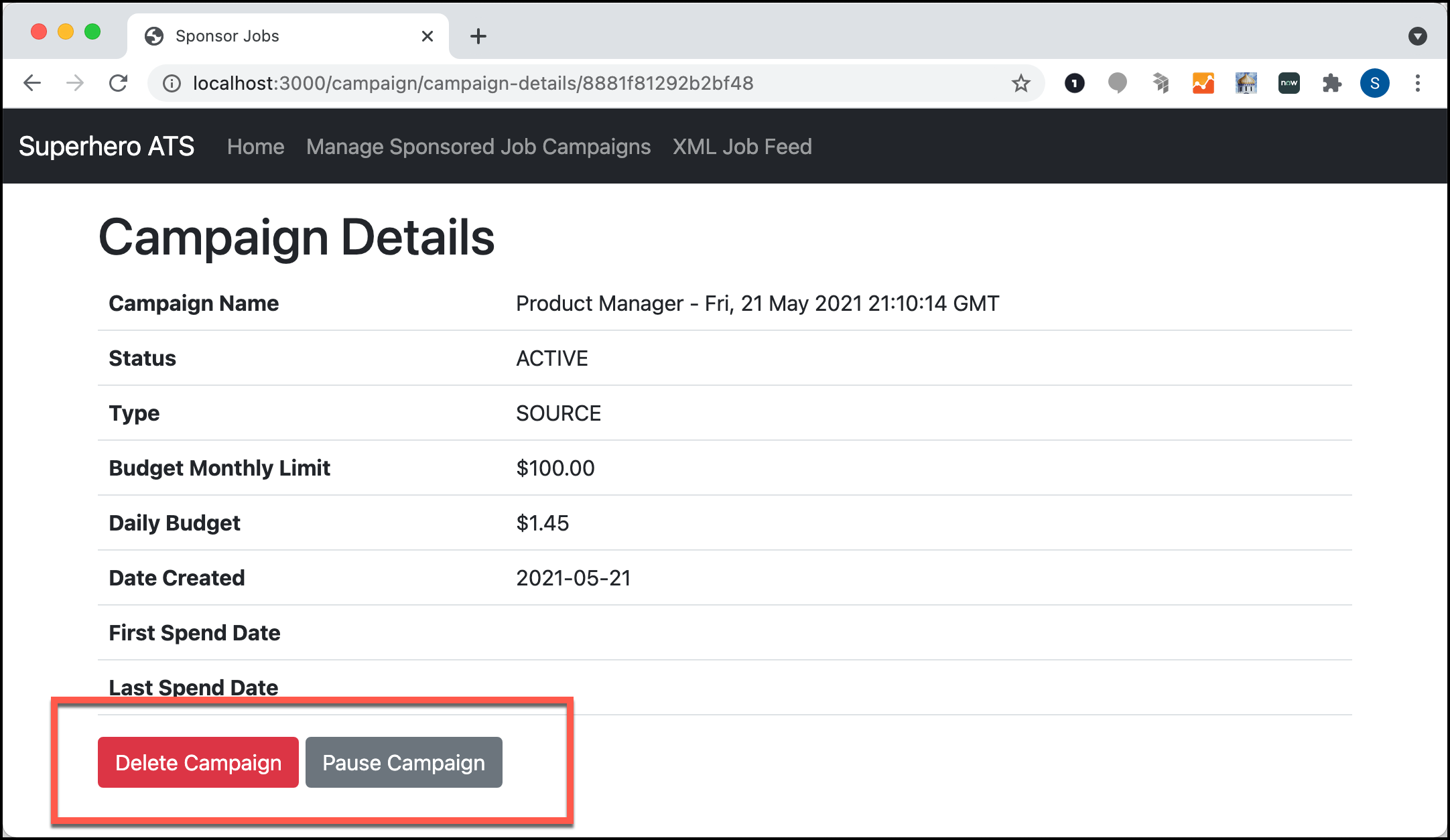
To view details for a campaign, an employer selects View.
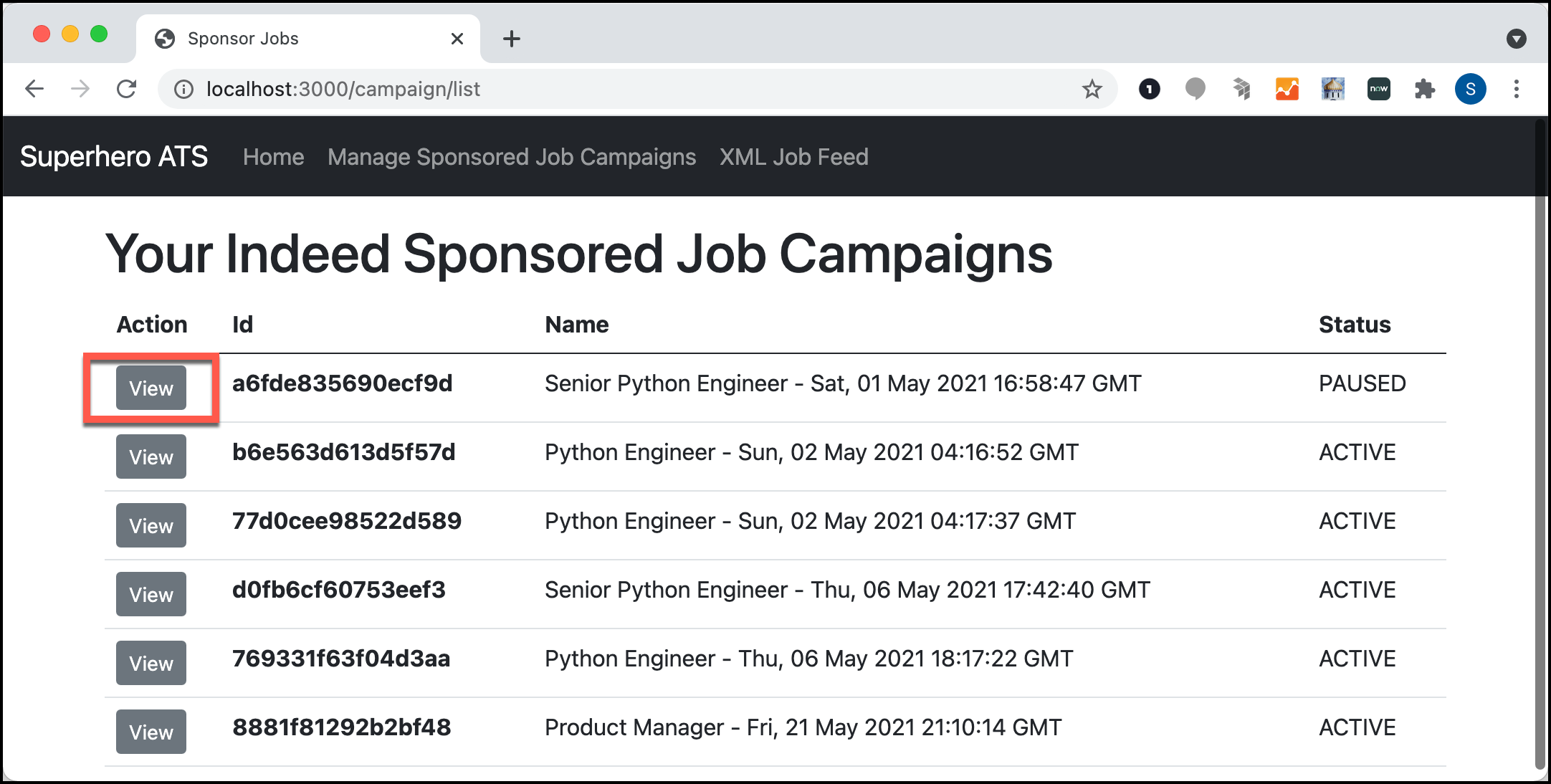
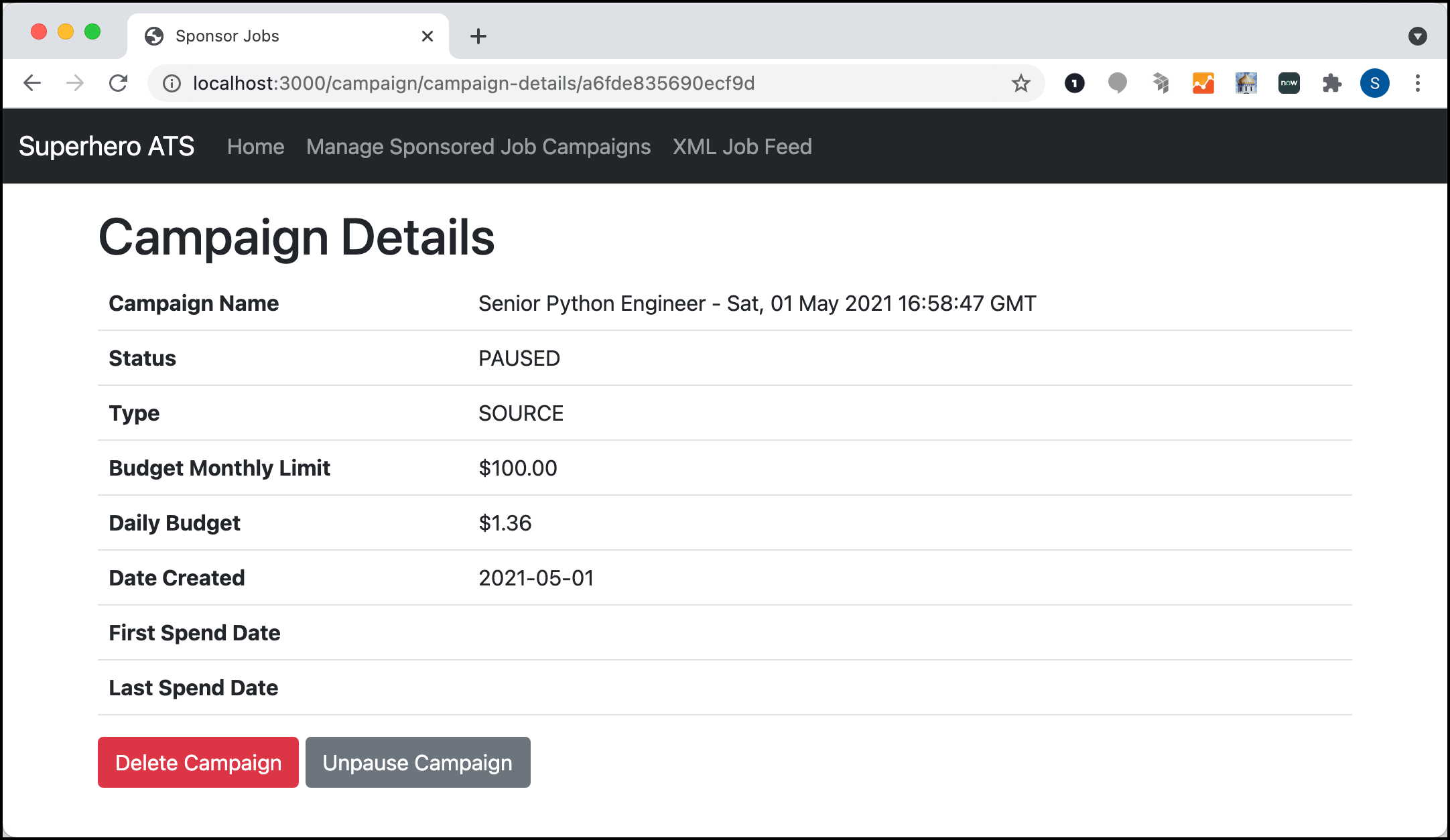
The sample app gets the details with the getCampaignDetails() method in CampaignService:
async getCampaignDetails(campaignId) {  // get campaign general info  const generalUrl = `${this.config.oysterBaseURL}/campaigns/${campaignId}`;  const general = await this.requestResource(generalUrl);
  // get campaign budget info  const budgetUrl = `${this.config.oysterBaseURL}/campaigns/${campaignId}/budget`;  const budget = await this.requestResource(budgetUrl);
  // get campaign properties info  const propertiesUrl = `${this.config.oysterBaseURL}/campaigns/${campaignId}/properties`;  const properties = await this.requestResource(propertiesUrl);
  return {    ...general,    ...budget,    ...properties,  };}
getCampaignDetails() calls these Indeed endpoints:
/campaigns/<id>for general campaign information./campaigns/<id>/budgetfor budget information./campaigns/<id>/propertiesfor property information.
The view combines and displays the data from these endpoints.
Pause, unpause, and delete campaigns
An employer pauses, unpauses, or deletes a campaign by changing its status. The updateCampaignStatus() method sends a PATCH request to /campaigns/<id>:
async updateCampaignStatus(campaignId, newStatus) { const url = `${this.config.oysterBaseURL}/campaigns/${campaignId}`; const results = await this.requestResource(url, 'PATCH', { status: newStatus, }); return results.Campaigns;}Deleting a campaign changes its status to DELETED but does not remove it: