- Supported feature
- Browser support
- Before you begin
- Load the plugin script
- Test the plugin
- Enable job search
- Show the job search UI
- Job search UI layout
- Customize the job search UI
- Best practices
- Set appropriate search criteria
- Use contrasting colors
- Ensure layout flexibility
- Add margins
- Show appropriate headers
- Ensure the plugin shows the job search UI
Publisher JavaScript Plugin
Integrate Indeed features into your job board or publisher site by making only front-end changes.
The Publisher JavaScript Plugin enables you to integrate the job search feature into your job board or publisher site by making only front-end changes.
Supported feature
The plugin supports the job search feature, which displays jobs from Indeed and Indeed PLUS job boards on your site.
The job search feature enables job seekers on your site to view a list of jobs from a query that you specify. Each job has its own job card with information about the job and a link to the job on Indeed.
From the pool of all Indeed PLUS jobs, Indeed provides a subset of jobs that you can display on your site. For more information, contact your Indeed representative.
Browser support
Render all plugin UI on HTTPS pages (HTTP is not supported).
The plugin supports these browsers:
| Chrome | Firefox | Safari | Edge (Chromium) | |
|---|---|---|---|---|
| Linux | ✅ | ✅ | N/A | ✅ |
| macOS | ✅ | ✅ | ✅ | ✅ |
| Windows | ✅ | ✅ | N/A | ✅ |
| Android | ✅ | ❌ | N/A | ❌ |
| iOS | ✅ | ❌ | ✅ | ❌ |
Before you begin
To use the plugin, you must be an Indeed partner. After you become an Indeed partner, contact your Indeed representative to get access to the plugin.
Load the plugin script
To load the plugin script into your job board or publisher site, add a <script> tag to the page where you show the plugin UI:
<!DOCTYPE html><html> <head> ... // Load the plugin script <script src="https://plugins.indeed.com/publisher-plugin/main.js" crossorigin defer ></script> ... </head> ...</html>Then, enable the job search feature.
Test the plugin
During setup, you provide the domain names of the sites where you integrate the plugin.
You can specify a domain name for both:
- The production environment
- The test environment
To test the plugin, the plugin automatically detects whether the plugin is loaded on the test domain and operates in test mode. In test mode, the plugin behaves in almost the same way as it does in production mode, except it disables the View job button.
Enable job search
To enable the job search feature in your site, load the plugin script and add an HTML element with the appropriate attributes to display the UI.
This example shows how to display the job search UI:
<!DOCTYPE html><html> <head> ... // Step 1: Load the plugin script <script src="https://plugins.indeed.com/publisher-plugin/main.js" crossorigin defer ></script> ... </head> <body> ... // Step 2: Specify where to display the job search UI <div data-indeed-plugin-type="<PLUGIN-TYPE>" data-indeed-partner-app-id="<PARTNER-APP-ID>" data-indeed-placement-id="<PLACEMENT-ID>" data-indeed-search-limit="<SEARCH-LIMIT>" data-indeed-search-what="<SEARCH-WHAT>" data-indeed-search-where="<SEARCH-WHERE>" data-indeed-search-job-types="<SEARCH-JOB-TYPES>" data-indeed-search-occupations="<SEARCH-OCCUPATIONS>" ></div> ... </body></html>Replace the parameters in angle brackets (<>) in the code snippet
with your values.
This table describes the data-indeed-* attributes:
| Attribute | Type | Required | Description |
|---|---|---|---|
data-indeed-plugin-type | String | Required | The feature to enable in this element. Must be |
data-indeed-partner-app-id | String | Required | Identifier of the website. Indeed provides this value. |
data-indeed-placement-id | String | Required | Identifier representing the placement of the plugin on the website. Indeed provides this value. |
data-indeed-search-limit | Integer | Optional | The maximum number of jobs to show in the job search UI. Must be between 1 and 20. The default is 10. |
data-indeed-search-what | String | Optional* | The search terms used in the query. Example: This string can have multiple terms separated by spaces. If it does, it is treated as an Example: If the string has multiple terms separated by *At least one of the following attributes must be specified:
|
data-indeed-search-where | String | Optional* | The location used in the query. Example: *At least one of the following attributes must be specified:
|
data-indeed-search-job-types | String | Optional | A comma-separated list of job type filters specified by SUID. If omitted, no job type filters are applied other than the ones that Indeed applies to produce the subset of jobs available to display on your site. Example: When multiple values are specified, it is treated as an |
data-indeed-search-occupations | String | Optional* | A comma-separated list of occupation filters specified by SUID. If omitted, no occupation filters are applied other than the ones that Indeed applies to produce the subset of jobs available to display on your site. Example: When multiple values are specified, it is treated as an *The SUID values for occupation filters might change in the future. |
The plugin does not display the job search UI if either:
- A parameter is not valid.
- The job search does not return any results.
Show the job search UI
Show the job search UI where it benefits job seekers.
Show headers above the UI to connect the content on the page to the job search UI. Help users understand why you are suggesting these jobs.
You can show the UI on these pages:
| Page | Header example | Description |
|---|---|---|
| Search results page | More related jobs | Show additional related jobs from Indeed PLUS after your site's search results. If a search returns no results, show related Indeed PLUS jobs instead. |
| Article page | Jobs related to this article | Show related jobs after the article. |
If you show the job search UI in more than one place on a page, the plugin shows it in only the first location.
Job search UI layout
The job search UI adapts to the width of its container. It appears appropriately on both mobile and desktop layouts. The maximum width of the UI is 700px.
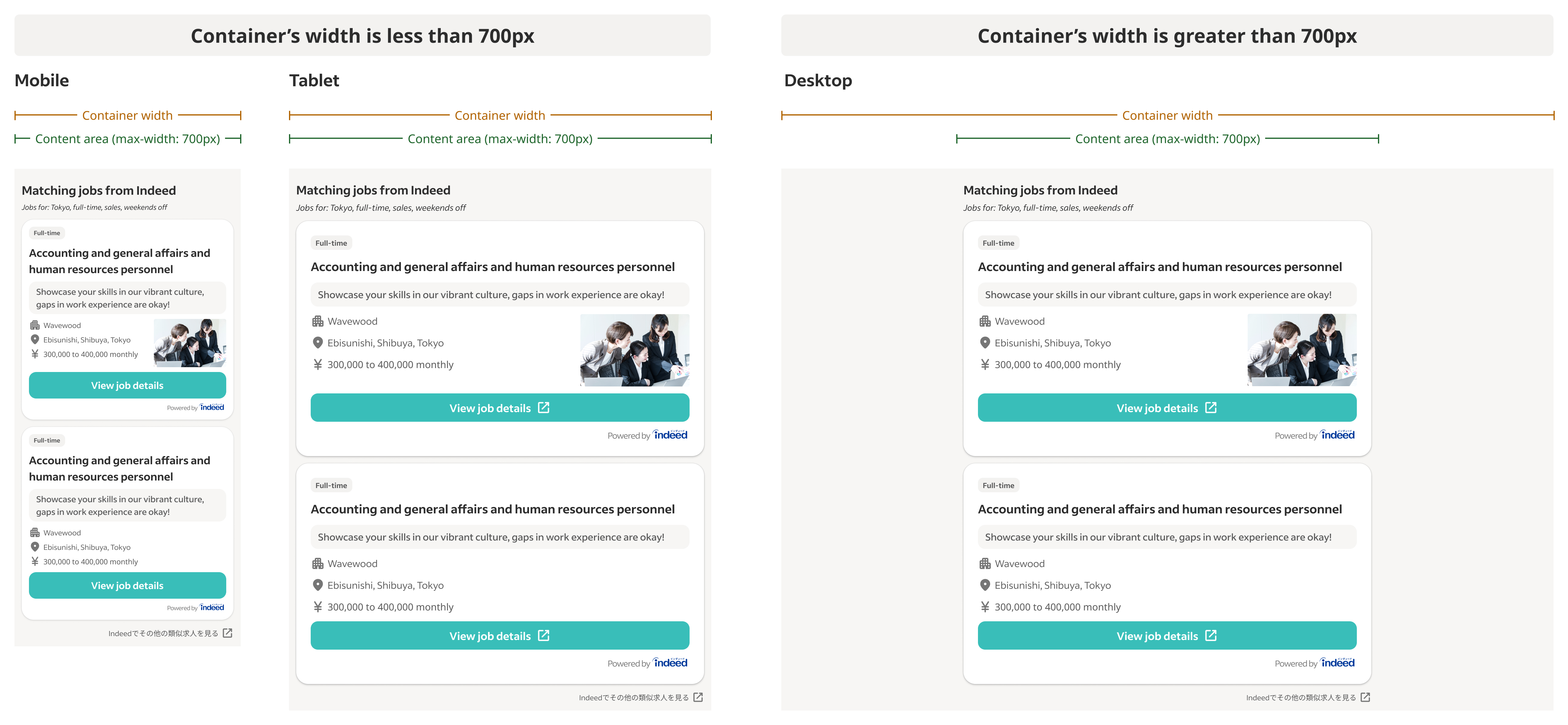
Customize the job search UI
You can customize these components of the job search UI:
- The text color of the header section
- The background color of the list body
- The background color and text color of the View job button on the job cards
This image shows examples of the default, and a customized, job search UI:
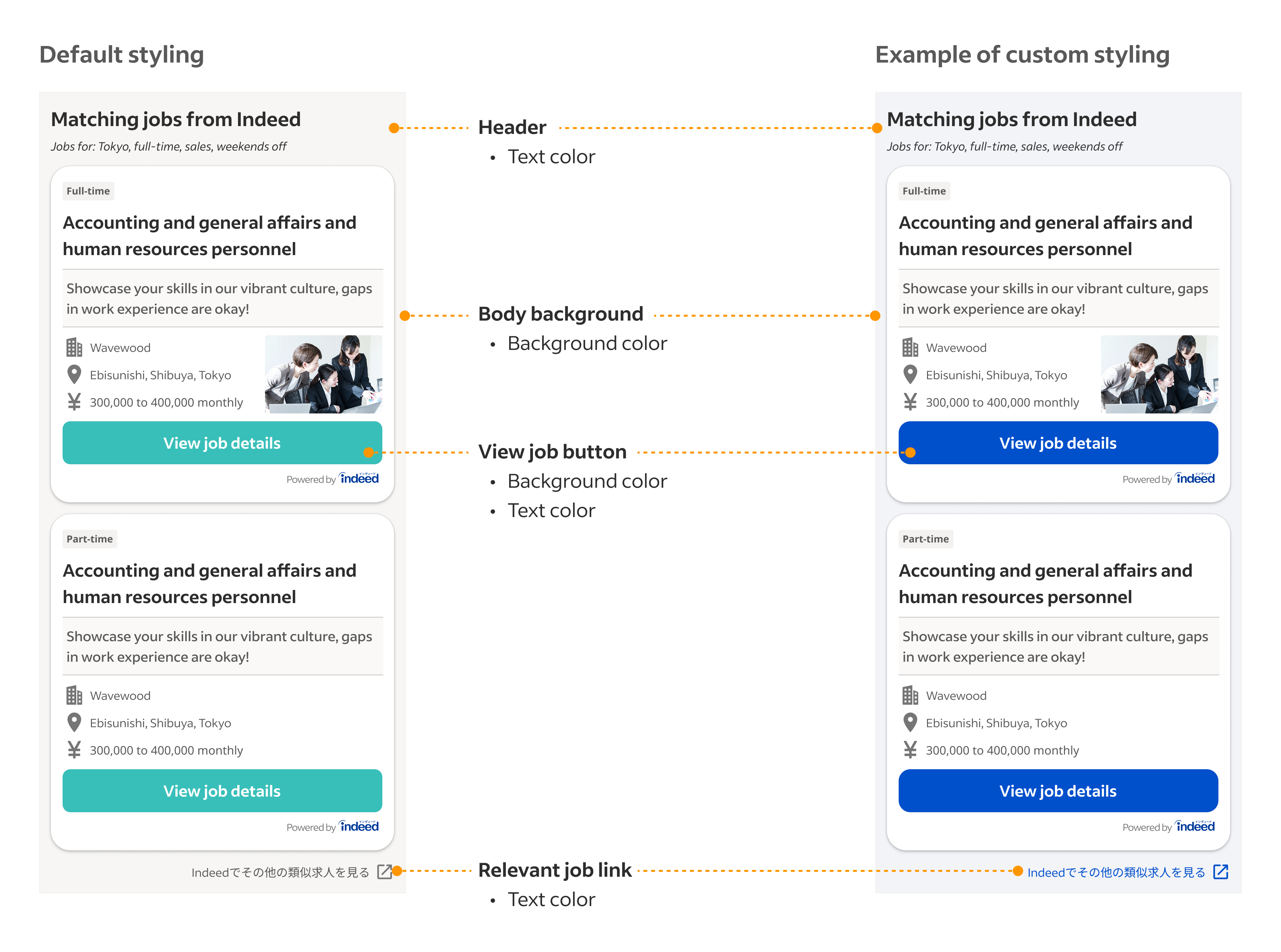
To customize any of these elements, contact your Indeed representative. Provide
the colors in hex values—for example, #FFFFFF for white.
Don't combine colors that make it difficult for users to see the content. For example, don't use a white font color on a white background.
During the test period, confirm the design of the job search UI and make any required changes.
Best practices
Follow these guidelines for displaying the job search UI.
Set appropriate search criteria
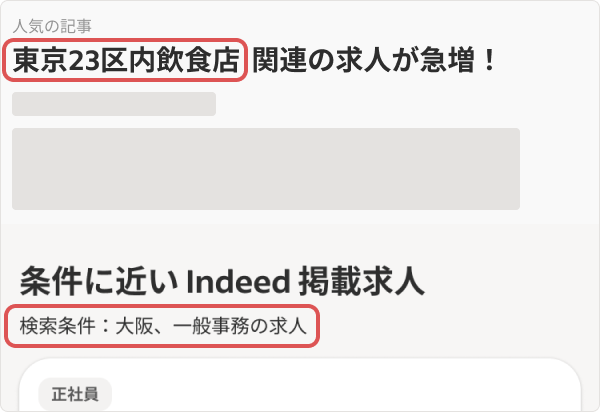
Set the job search criteria to be related to the content of the page.

Use contrasting colors
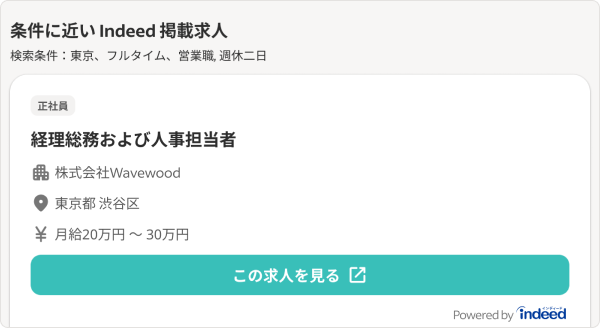
Choose colors where the content contrasts with the background. For example, don't use a white font color on a white background.
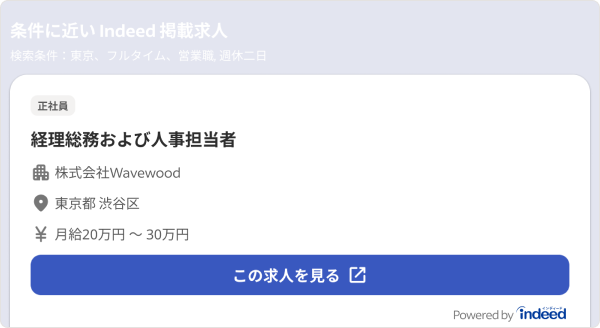
Ensure layout flexibility
The job search UI height depends on the number and height of the job cards. Ensure that the site layout can adapt to the UI at different heights.


Add margins
Maintain a minimum 16px margin on the top and bottom of the job search UI.
Show appropriate headers
Show explanatory headers above the job search UI so users understand why they see these jobs. Do not lead users to click on jobs for monetization purposes.
Ensure the plugin shows the job search UI
In these cases, the plugin does not show jobs:
- The job search did not return any results.
- The API call failed.
- You reached your monthly revenue cap.
Indeed assigns each publisher a cap on how much revenue they can receive from clicks on jobs that the plugin displays. When you reach your cap, the plugin stops showing jobs. For more information, contact your Indeed representative.
Check whether the plugin successfully shows the job search UI. The plugin sends an event of indeed-plugin-event type to the plugin root element. The detail field contains the type of event and the event's payload. The success field of payload indicates whether the plugin successfully shows the UI.
For example, you can show a loading indicator, such as a spinner, and show header text if the plugin successfully shows the UI.
This code snippet shows part of the implementation of these APIs. Do not copy this code into your code:
type IndeedPluginEventDetail = {  type: "load";  payload: {    success: boolean;  }}
// When the plugin rendering succeedsconst eventDetail: IndeedPluginEventDetail = {  type: "load",  payload: {    success: true  }};// When the plugin rendering failsconst eventDetail: IndeedPluginEventDetail = {  type: "load",  payload: {    success: false  }};
const indeedPluginEvent = new CustomEvent("indeed-plugin-event", {  detail: eventDetail});
This example shows how to check whether the plugin successfully showed the UI:
const pluginRoot = document.getElementById("<plugin-root-id>");
pluginRoot.addEventListener("indeed-plugin-event", (event) => {    const { type, payload } = event.detail;
    if (type === "load") {        const success = payload.success;        if (success) {            // When the rendering succeeds        }        else {            // When the rendering fails        }    }});