Configure EEO questionnaire (optional)
Configure EEO questionnaires in Workday for Indeed integration.
Who: Workday administrator
Time: ~30 minutes (one-time setup)
Skip this section if your company does not gather EEO data from applicants.
Configure EEO questionnaires in Workday to collect demographic information from job seekers. Indeed supports primary and secondary questionnaire types. Questionnaires attached to a job requisition are displayed automatically to applicants. For Question Body fields, you can include rich text formatting such as bold, lists, and hyperlinks.
Step 1: Create EEO questionnaire
-
Search for
Create Questionnaireand select the Task. -
Enter
Indeed EEO US Englishin the Name field. The name must match exactly. Do not attach the questionnaire to any jobs. Indeed displays EEO questions for US jobs only. -
Select OK.
Step 2: Create EEO questions
Indeed supports these Workday EEO question types:
Data collection questions:
- Gender
- Ethnicity (single or multiple select)
- Veteran Status
- Hispanic/Latino
- Terms and Conditions (answer not delivered)
- Disability Status Last Update Date
- Disability Status
Informational questions:
- Personal Data Statement
- Disability Instructions
- Disability Public Burden
- Page Breaks
All question names and possible answers must match the exact text specified in this guide.
To begin creating questions:
After creating Gender, Ethnicity, and Hispanic/Latino questions, you must update localization settings to enable these fields for US candidates. Instructions are included in each question section that follows.
-
Select Maintain Questions.

Maintain Questions screen -
Select Create Question from the Question dropdown.
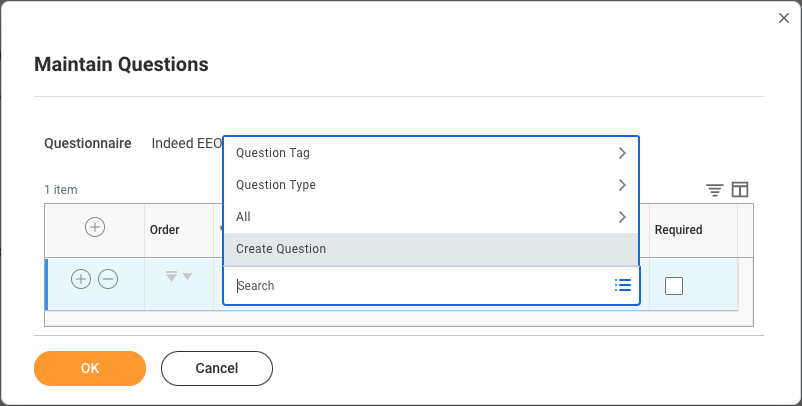
Question dropdown -
Configure each question type you need using the following instructions. Questions are listed in the recommended presentation order.
Personal data statement
-
Enter
Indeed EEO US Personal Data Statementin the Question Name field. -
Enter the Personal Data Statement from your External Career Site settings in the Question Body field.
-
Select Text for Question Type.
-
Select OK.
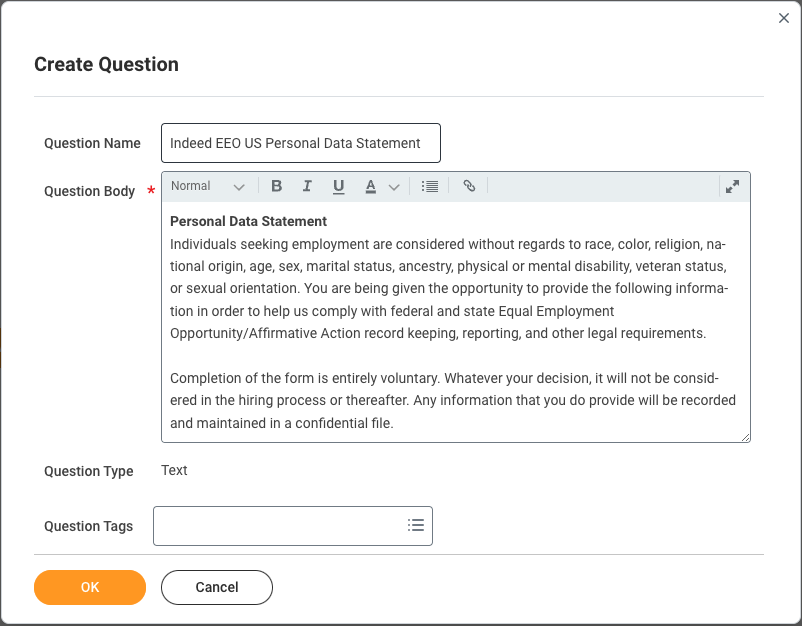
Create Question screen
Gender
-
Enter
Indeed EEO US Genderin the Question Name field. -
Enter your question body text.
-
Select Multiple Choice - Single Select for Question Type.
-
Get the possible answer choices:
- Open a new browser tab and search for
View Reference IDs. - Select the Report.
- Enter
Genderin the Business Object field. - Select OK.
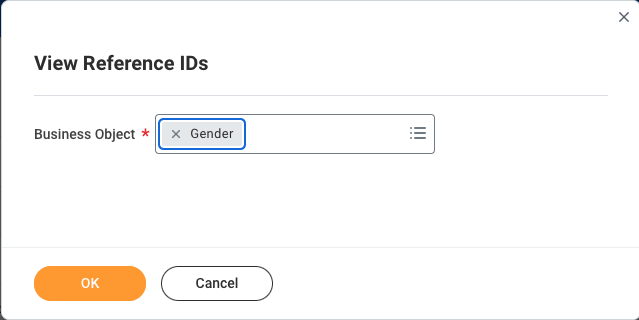
View Reference IDs screen with Gender selected - Select options from the Business Object Instance column in the results to use as Possible Answer choices.
- Open a new browser tab and search for
-
Update localization settings:
- Open a new browser tab and search for
Maintain Localization Settings. - Select the Task.
- Enter
Personal Informationin the Area field. - Select OK.
- Find the row for Gender (Candidate) under Localized Field.
- Ensure
United States of Americais in the list in the Allow for Countries or Regions column. - Ensure the Active checkbox is selected.
- Select OK.
- Open a new browser tab and search for
Ethnicity
-
Enter
Indeed EEO US Ethnicityin the Question Name field. -
Enter your question body text.
-
Select one of the following for Question Type:
- Multiple Choice - Single Select if job seekers should select only one choice.
- Multiple Choice - Multiple Select if job seekers can select one or more choices.
-
Configure your Workday tenant if you selected Multiple Choice - Multiple Select:
- Open a new browser tab and search for
Edit Tenant Setup - Global. - Select the Task.
- Find Allow Multiple Ethnicities under Personal Data for Workers.
- Ensure
United States of Americais in the Allow in these Countries list. - Select OK.
- Open a new browser tab and search for
-
Get the possible answer choices:
- Open a new browser tab and search for
View Reference IDs. - Select the Report.
- Enter
Ethnicityin the Business Object field. - Select OK.
- Select options from the Business Object Instance column in the results to use as Possible Answer choices. Include the text in parentheses.
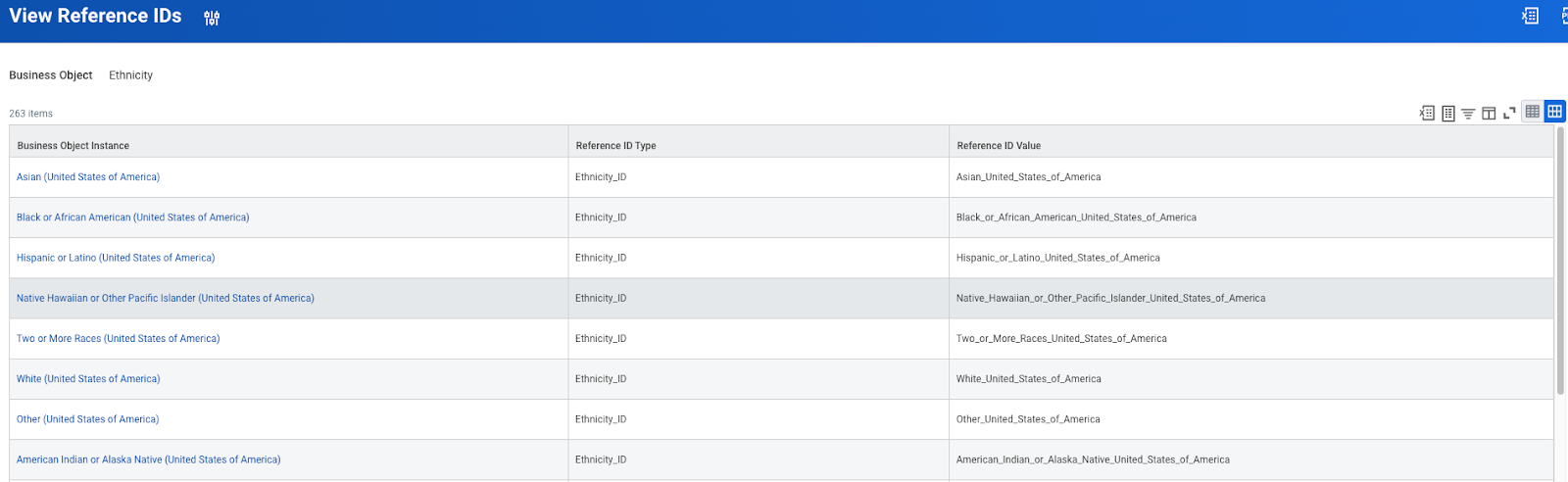
Ethnicity reference IDs results - Open a new browser tab and search for
-
Update localization settings:
- Open a new browser tab and search for
Maintain Localization Settings. - Select the Task.
- Enter
Personal Informationin the Area field. - Select OK.
- Find the row for Race/Ethnicity (Candidate) under Localized Field.
- Ensure
United States of Americais in the list in the Allow for Countries or Regions column. - Ensure the Active checkbox is selected.
- Select OK.
- Open a new browser tab and search for
Veteran status
-
Enter
Indeed EEO US Veteran Statusin the Question Name field. -
Enter your question body text.
-
Select Multiple Choice - Single Select for Question Type.
-
Get the possible answer choices:
- Open a new browser tab and search for
View Reference IDs. - Select the Report.
- Enter
Veteran Statusin the Business Object field. - Select OK.
- Select options from the Business Object Instance column in the results to use as Possible Answer choices.

Veteran Status reference IDs results - Open a new browser tab and search for
Hispanic/Latino
-
Enter
Indeed EEO US Hispanic/Latinoin the Question Name field. -
Enter your question body text.
-
Select Multiple Choice - Single Select for Question Type.
-
Add these possible answers:
- Yes
- No
-
Update localization settings:
- Open a new browser tab and search for
Maintain Localization Settings. - Select the Task.
- Enter
Personal Informationin the Area field. - Select OK.
- Find the row for Hispanic/Latino (Candidate) under Localized Field.
- Ensure
United States of Americais in the list in the Allow for Countries or Regions column. - Ensure the Active checkbox is selected.
- Select OK.
- Open a new browser tab and search for
Terms and conditions
-
Enter
Indeed EEO US Termsin the Question Name field. -
Enter the Terms and Conditions from your External Career Site settings in the Question Body field.
-
Select Multiple Choice - Single Select for Question Type.
-
Add these possible answers:
- The Candidate Consent from your External Career Site settings
- Unused (this can be any value. Indeed does not use it, but Workday requires at least two possible answers)
Page break
Use page breaks to create different sections of questions.
-
Enter
Indeed EEO Page Breakin the Question Name field. Do not include "US" in the question name for page breaks. -
Enter
Unusedin the Question Body field.This can be any value. Indeed does not use it, but Workday requires a question body.
-
Select Text for Question Type.
Disability status last update date
-
Enter
Indeed EEO US Disability Status Last Update Datein the Question Name field. -
Enter your question body text.
-
Select Date for Question Type.
Disability instructions
-
Enter
Indeed EEO US Disability Instructionsin the Question Name field. -
Enter the instructions displayed on the Voluntary Self-Identification of Disability page when job seekers apply on your Career Site in the Question Body field.
-
Select Text for Question Type.
Disability status
-
Enter
Indeed EEO US Disability Statusin the Question Name field. -
Enter your question body text.
-
Select Multiple Choice - Single Select for Question Type.
-
Get the possible answer choices:
- Search for
Integration IDsand select the Report. - Enter
Self-Identification of Disability Statusin the Business Object field. - Select OK.
- Select options from the Instance column in the results where the ID ends in
_2026to use as Possible Answer choices.
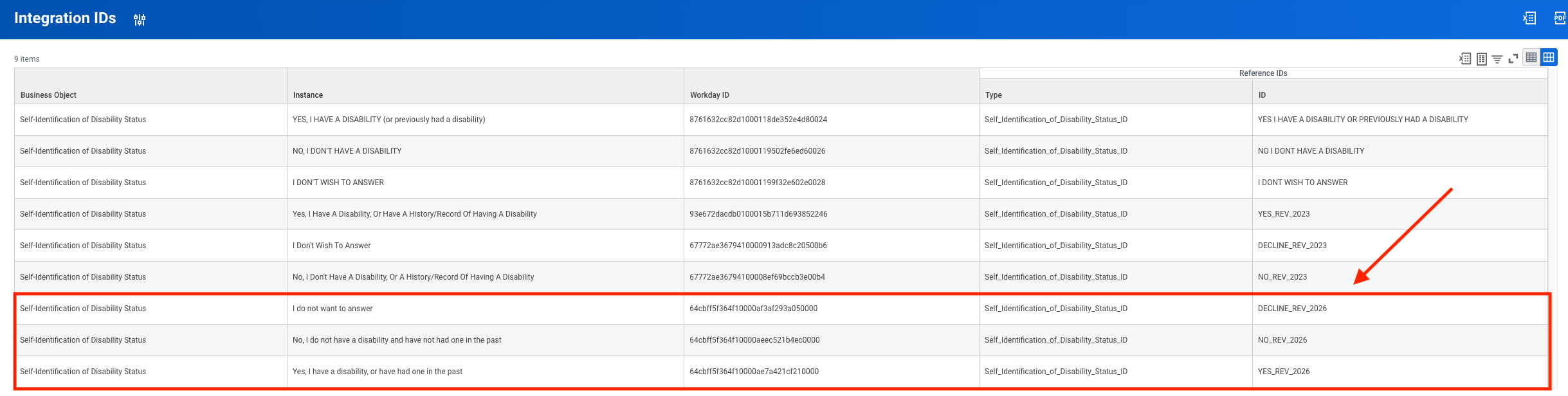
Integration IDs dropdown - Search for
Disability public burden
-
Enter
Indeed EEO US Disability Public Burdenin the Question Name field. -
Enter the PUBLIC BURDEN STATEMENT displayed on the Voluntary Self-Identification of Disability page when job seekers apply on your Career Site in the Question Body field.
-
Select Text for Question Type.
Finalize questionnaire
After creating all the questions you need:
-
Select the checkbox in the Required column to make a question required.
-
Select the plus icon to add another question, then repeat the configuration process for that question type.
-
Select OK to save the questionnaire.
Next steps
You have successfully configured EEO questionnaires for the Indeed integration.
You completed:
- Created the EEO questionnaire.
- Configured EEO questions with matching names and answer options.
How to verify:
Your EEO questionnaire is ready when:
- The questionnaire is named exactly
Indeed EEO US English. - All question names and possible answers match the specifications in this guide.
- Job seekers applying through Indeed will see the configured EEO questions for US jobs.
What's next:
You can optionally configure:
- Configure custom organization - If you need a custom company name for Indeed job postings
Or continue to the next required step: