Configure calculated field (optional)
Create a Workday calculated field to set the company name on Indeed.
Who: Workday administrator
Time: ~15 minutes (one-time setup)
Skip this section if you use a standard organization type, a custom organization type, or a static value for your company name.
Create a calculated field in Workday to control the company name displayed to job seekers on Indeed. Use a calculated field when you want to derive the company name from existing job requisition data, or combine several fields into a single value.
Step 1: Create the calculated field
-
Search for the Create Calculated Field task in Workday.
-
Enter a Field Name. You can use any name.
-
For Business Object, select Job Requisition.
-
For Function, choose the option that fits your needs, and then select OK. Common choices are:
- Text Constant - sets a single, fixed value.
- Concatenate Text - combines values from several fields.

Create Calculated Field dialog
Configure the value for the function you chose:
-
For Text Constant, enter the value to display as the company name.
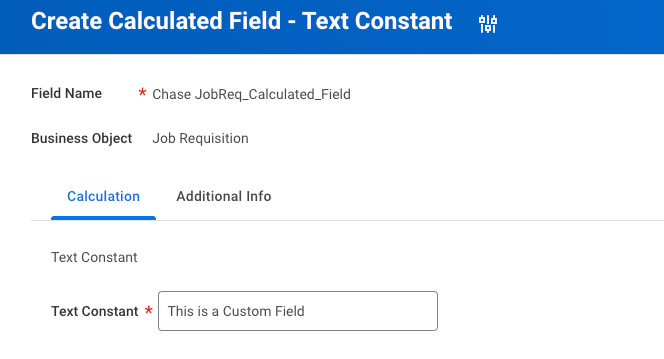
Text Constant value entry -
For Concatenate Text, add and order the fields to combine.

Concatenate Text field selection
Step 2: Record the WQL Alias
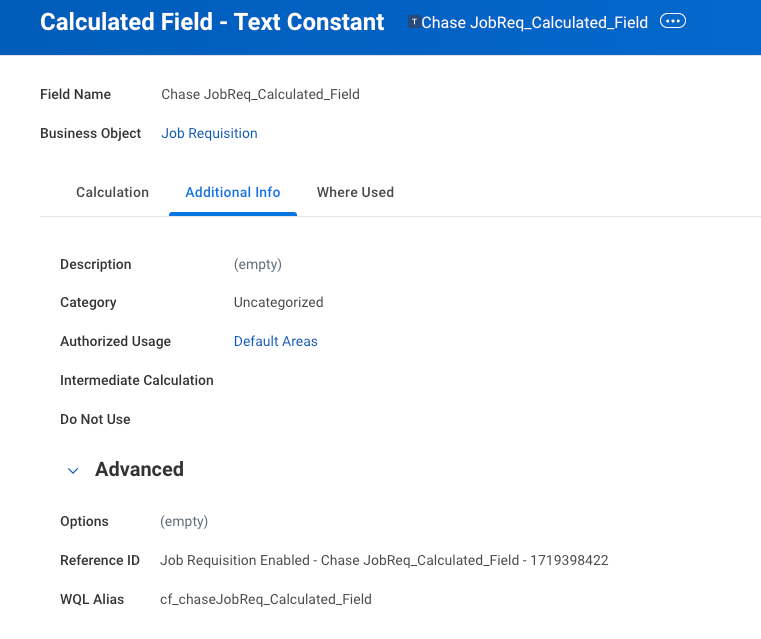
When you create the field, note the WQL Alias. You provide this value to your Indeed administrator during installation.
If you need to find the WQL Alias later, search for your calculated field and open the Additional Info tab. The alias appears alongside the Reference ID.
Next steps
You have successfully created a calculated field in Workday.
You completed:
- Created a calculated field on the Job Requisition business object.
- Recorded the WQL Alias to provide to your Indeed administrator.
What's next:
Continue to the next required step: