- Supported features
- Browser support
- Before you begin
- Set up your Indeed account
- Set up your OAuth application
- Load the plugin script
- Configure the data-indeed-allow-employer-creation parameter
- Toggle visibility
- Display job visibility status
- Enable job visibility in the plugin
- Display a job visibility button
- Job visibility button variants
- Where to display job visibility buttons
- Job visibility best practices
- Job visibility troubleshooting
- Enable sponsored jobs
- Enable sponsored jobs in the plugin
- Display a sponsored job button
- Sponsored job button variants
- Where to display sponsored job buttons
- Sponsored jobs best practices
- Troubleshooting
- The plugin shows "Unable to connect to the server"
- A plugin button doesn't show the correct status
ATS JavaScript Plugin
Integrate Indeed features into your ATS site by making only front-end changes.
See Indeed Plugin Terms.
The ATS JavaScript Plugin adds Indeed features to your ATS site with front-end changes only.
Supported features
The plugin supports these features:
- Job visibility: visibility status across Indeed and Indeed PLUS job boards, with moderation reasons and fixes.
- Sponsored jobs: sponsorship from your ATS.
Browser support
The plugin requires HTTPS — render all plugin buttons on HTTPS pages. Supported browsers:
| Chrome | Firefox | Safari | Edge (Chromium) | |
|---|---|---|---|---|
| Linux | ✅ | ✅ | N/A | ❌ |
| macOS | ✅ | ✅ | ✅ | ✅ |
| Windows | ✅ | ✅ | N/A | ✅ |
| Android | ❌ | ❌ | ❌ | ❌ |
| iOS | ❌ | ❌ | ❌ | ❌ |
Before you begin
Complete these steps before integrating plugin features.
Set up your Indeed account
You need an Indeed account linked to your ATS and these ATS keys from your Indeed representative:
- Sponsor ATS key
- Aggregation ATS key (web interviews only)
Set up your OAuth application
The plugin uses 3-legged OAuth 2.0 to authenticate and authorize clients.
- Create a 3-legged OAuth app.
- Register it as a public client. See Authorization code grant type (3-legged OAuth).
Load the plugin script
Add this <script> tag to integrate the ATS JavaScript Plugin into your ATS site:
<script src="https://plugins.indeed.com/ats-plugin/main.js" data-indeed-locale="<LOCALE>" data-indeed-enabled-plugins="<ENABLED-PLUGINS>" data-indeed-oauth-client-id="<CLIENT-ID>" data-indeed-redirect-url="<REDIRECT-URL>" data-indeed-ats-key="<ATS-KEY>" data-indeed-ats-user-id="<ATS-USER-ID>" data-indeed-ats-company-id="<ATS-COMPANY-ID>" data-indeed-plugin-z-index="<Z-INDEX>" data-indeed-allow-employer-creation="<true|false>" crossorigin defer></script>Replace the parameters in angle brackets (<>) with your values.
| Attribute | Description |
|---|---|
| Required. Locale of the plugin UI text. Supported values:
|
| Required. Comma-separated list of feature IDs to activate. Supported values:
Examples:
|
| Required. App's client ID. See Get your OAuth credentials. |
| Required. One of the app's redirect URLs that runs the plugin. This must have the same origin as any pages that run the plugin.
In this example, The redirect page ( For 3-legged OAuth apps, define up to five redirect URLs in Partner Console. |
| Required. Indeed account's ATS key. See Set up your Indeed account. |
| Required. Unique string that identifies the current user on the ATS site. The ATS generates this string. Use UTF-8 with alphanumeric characters, hyphens ( |
| Required. Unique string that identifies the current user's company. The ATS generates this string. Use UTF-8 with alphanumeric characters, hyphens ( |
| Optional. z-index of the plugin's side panel. Defaults to 999. Example: |
| Optional. Enables or disables employer creation during initial user setup. Example: |
Configure the data-indeed-allow-employer-creation parameter
The optional data-indeed-allow-employer-creation attribute controls whether users can create an Indeed employer account during setup.
| Option | Description | Use when |
|---|---|---|
| Leave unset | The plugin shows an extra screen during setup so users can identify their user type and account status. | You don't know the user type (direct employer or agency) in advance. |
Set to true | Lets users create employer accounts on Indeed through the plugin. | You know users are direct employers who need to create accounts. |
Set to false | Blocks employer account creation through the plugin. The plugin directs users to contact their ATS, Indeed, or their agency for support. | You know users are agencies managing multiple advertisers or employers using agencies, and you want to restrict account creation. |
Set data-indeed-allow-employer-creation based on the employer type:
- Agency employers and employers using an agency: set to
falseto prevent duplicate employer accounts. - Direct employers: set to
trueto skip the self-identification screen and speed up setup.
Visual guide
The image shows the user setup flow. If you do not set data-indeed-allow-employer-creation, the self-identification screen (How do you manage jobs?) appears.

Toggle visibility
On script load, the Indeed ATS JavaScript plugin exposes a global IndeedAtsPlugin variable with these functions:
| Function | Description |
|---|---|
renderPlugins(): void | Renders all plugin UIs (buttons and side panel) on the page. Unmounts existing UIs first. The plugin calls this automatically on script load. |
unmountPlugins(): void | Unmounts all plugin UIs (buttons and side panel) from the page. No-op if none exist. |
renderButton(root: HTMLElement): void | Renders a plugin button on a root HTML element. No-op if the element lacks the required |
unmountButton(root: HTMLElement): void | Unmounts a plugin button from a root HTML element. No-op if no button exists. |
Use these APIs to control plugin UI visibility. In single-page applications, the mount point might not exist at script load — call renderButton once it becomes visible.
Display job visibility status
The job visibility feature of the ATS JavaScript Plugin lets employers check the status of their posted jobs from your ATS site.
Display a job visibility button — when set to dynamic, the button shows the job's visibility status.
Employers select the button to see details.
Enable job visibility in the plugin
Add job-visibility to the data-indeed-enabled-plugins attribute on the plugin's <script> tag. See Load the plugin script.
Display a job visibility button
Display one job visibility button per job. The button cannot show status for multiple jobs or job groupings.
To display a job visibility button, add this <div> element:
<div data-indeed-plugin="job-visibility" data-indeed-employer-job-id="<INDEED-EMPLOYER-JOB-ID>" data-indeed-is-dynamic="false" data-indeed-job-title="<JOB-TITLE>" data-indeed-button-size="<sm|md>"></div>Replace the values in angle brackets (<>) with your values.
| Attribute | Description |
|---|---|
data-indeed-plugin | Required. Set to |
data-indeed-employer-job-id | Required. Employer job ID that the Job Sync API returns when your ATS posts the job. Store this value in your database and associate it with your system's job identifier. |
data-indeed-is-dynamic | Optional. Set to Set to |
data-indeed-job-title | Optional. Posted job title. Appears as the title in the plugin UI. |
data-indeed-button-size | Optional. Job visibility button size. Supported values:
Example: |
Job visibility button variants
The job visibility button behaves differently depending on whether data-indeed-is-dynamic is true (dynamic) or false (static).
Dynamic buttons are in beta. Their performance might be unstable and can slow the page.
When you embed the HTML in Display a job visibility button, the plugin generates the button with its predefined styles and renders the state automatically. The button supports these states:
| State | Image | Description |
|---|---|---|
Loading |  | The plugin is loading the button's state. |
| Awaiting |  | The plugin is processing the job in a queue. |
| Ineligible |  | The job has unresolved issues and does not appear on Indeed or Indeed PLUS job boards. |
| Eligible* |  | The job appears on Indeed but not on Indeed PLUS job boards. |
| Eligible |  | The job appears on Indeed and Indeed PLUS job boards. |
| Expired |  | The job has expired. |
| Fallback |  | The button is static, or the plugin cannot load its state. |
Where to display job visibility buttons
Place job visibility buttons where employers are most likely to want to check status. Balance them against other UI elements so the page does not look cluttered.
Recommended places:
Job list page
Show job visibility buttons on the job list page so employers can quickly check status across all jobs.
For pages with many jobs, use static buttons (data-indeed-is-dynamic="false") to render faster.
Job detail page
Show a job visibility button on the job detail page, near related information, so employers can quickly check visibility status in context.
Job visibility best practices
When you display job visibility buttons, follow these guidelines:
- Use the button as-is. The button renders with Indeed branding styles — do not modify them.
- Allow for variable button width. The button is 164px wide, but the visible width changes with its state.
- Set the button height with
data-indeed-button-size:mdfor 40px,smfor 32px. - Place the button on a light background.
- Keep an 8px margin on all sides of the button.
Job visibility troubleshooting
The job visibility button doesn't show the status
To enable the dynamic button, confirm that data-indeed-is-dynamic="true".
Enable sponsored jobs
See Indeed Plugin Terms.
The sponsored jobs feature lets employers sponsor Indeed jobs from your ATS site. See Sponsored Jobs API.
Enable sponsored jobs in the plugin
Add sponsored-jobs to the data-indeed-enabled-plugins attribute on the plugin's <script> tag.
Display a sponsored job button
After you enable sponsored jobs, the Sponsor button appears in your ATS site. Employers select it to sponsor a job or view sponsorship details.

To display a Sponsor button, add this <div> element:
<div data-indeed-plugin="sponsored-jobs" data-indeed-ref-num="<REF-NUM>" data-indeed-source-name="<SOURCE-NAME>" data-indeed-job-title="<JOB-TITLE>"></div>Replace the parameters in angle brackets (<>) with your values. This table describes the data-indeed-* attributes:
| Attribute | Description |
|---|---|
data-indeed-plugin | Required. Set to |
data-indeed-ref-num | Required. Unique job identifier from the employer. The job must be available on Indeed. For jobs created with the Job Sync API, use For jobs created with an XML job feed, use <referencenumber>. |
data-indeed-source-name | Required. The parent organization hiring for this job. For jobs created with the Job Sync API, use For jobs created with an XML job feed, use <sourcename>. |
data-indeed-job-title | Optional. Job title used to auto-fill the campaign name. Defaults to New Campaign. |
Sponsored job button variants
The Sponsor button changes appearance based on the sponsorship status.
| Status | Description | Image |
|---|---|---|
| None | The job is not sponsored, or the employer deleted the sponsorship. | |
| Scheduled | Sponsorship is scheduled to start. |  |
| Spending | Sponsorship is active and the employer is spending budget. |  |
| Not spending | The campaign is active, but the employer is not spending budget. Indeed does not boost the job's visibility in this state — the result matches an unsponsored job. For reasons the employer might not be spending, see List employer campaigns and statuses. |  |
| Paused | The employer paused the sponsorship. |  |
| Unavailable | The job is not available on Indeed and cannot be sponsored. |  |
Where to display sponsored job buttons
Place sponsored job buttons where employers are most likely to want to sponsor a job. Balance them against other UI elements so the page does not look cluttered.
Recommended places:
Job list page
Sponsored job buttons on the job list page let employers check status and manage sponsorships at a glance.

After posting a job
Show the sponsored job button right after the employer posts a job to prompt them to sponsor it.

Sponsored jobs best practices
When you display a sponsored job button, follow these guidelines:
| Best practice | Examples |
|---|---|
Keep an 8px margin on all sides of the button. | ✅ Correct example:  ❌ Incorrect example:  |
Allow for variable button width. The button is 40px tall, but its width changes with its state. Design the surrounding layout to adapt. | ✅ Correct example: 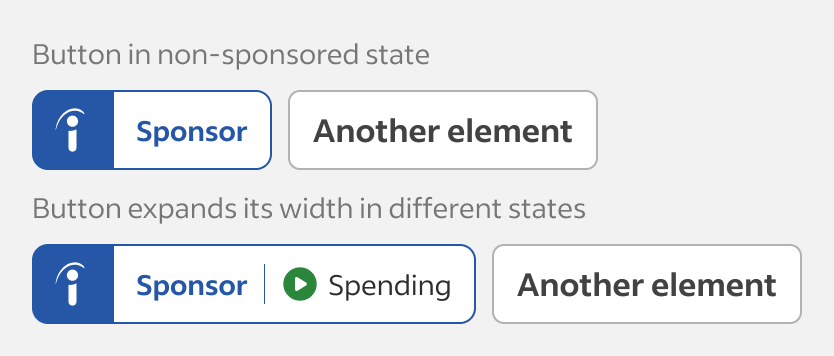 ❌ Incorrect example:  |
Place the button on a light background. | ✅ Correct example:  ❌ Incorrect example:  |
Use the button as-is. The button ships with Indeed branding styles — do not modify them. | ✅ Correct example:  ❌ Incorrect example:  |
Troubleshooting
The plugin shows "Unable to connect to the server"
Verify that:
data-indeed-oauth-client-iduses the correct client ID.data-indeed-redirect-urluses a redirect URL registered in Partner Console with the same origin as the page running the plugin.
If the issue persists, contact Indeed.
A plugin button doesn't show the correct status
Plugin buttons take several hours to reflect job posting changes.